If you own a WordPress website, one skill you must learn from day one is how to create a new post in WordPress. Posts are the heart of blogging; they help you share ideas, publish tutorials, promote products, and keep your website fresh for both users and search engines.
Regular posting not only builds trust with readers but also improves SEO, increases indexing frequency, and plays a key role in Google AdSense approval. That’s why understanding the correct and professional way to publish posts in WordPress matters.
In this guide, you’ll learn how to create a new post in WordPress from scratch, use the editor properly, optimize every section, and publish content the right way, without confusion.
Table of Contents
What Is a WordPress Post?
A WordPress post is time‑based content that appears on your blog page. Posts are usually displayed in reverse chronological order, meaning your latest post appears first.
Posts are best used for:
- Blog articles
- Tutorials and guides
- News and updates
- Reviews and opinions
Unlike pages, posts support categories, tags, and comments, making them perfect for ongoing content.
How to Create a New Post in WordPress (Step‑by‑Step)
Step 1: Log in to the WordPress Dashboard
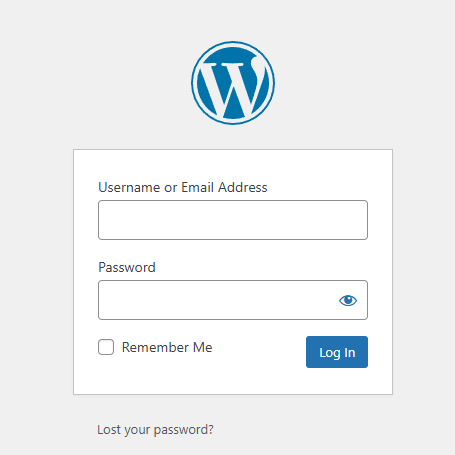
To begin, log in to your WordPress admin panel:
yourwebsite.com/wp-admin
After logging in, you’ll land on the WordPress dashboard.
Step 2: Go to Posts → Add New
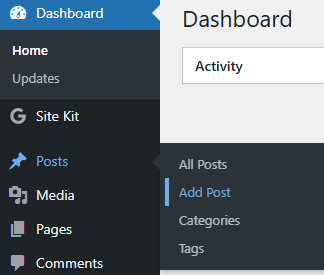
From the left menu:
- Click Posts
- Select Add New
This opens the WordPress editor where you create and edit your post.
Step 3: Add the Post Title and Content
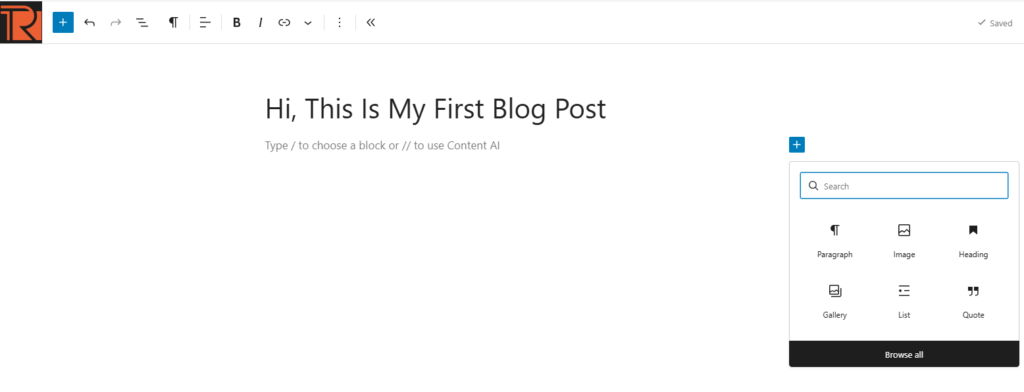
At the top, you’ll see the Add title field. Write a clear, keyword‑focused title that tells readers exactly what the post is about.
Below the title is the content area. Start writing your article using blocks.
To add elements like headings, paragraphs, or lists:
- Click the + icon
- Choose the required block
Use headings (H2, H3) properly to structure your content and enhance readability.
Step 4: Add Images to the Post
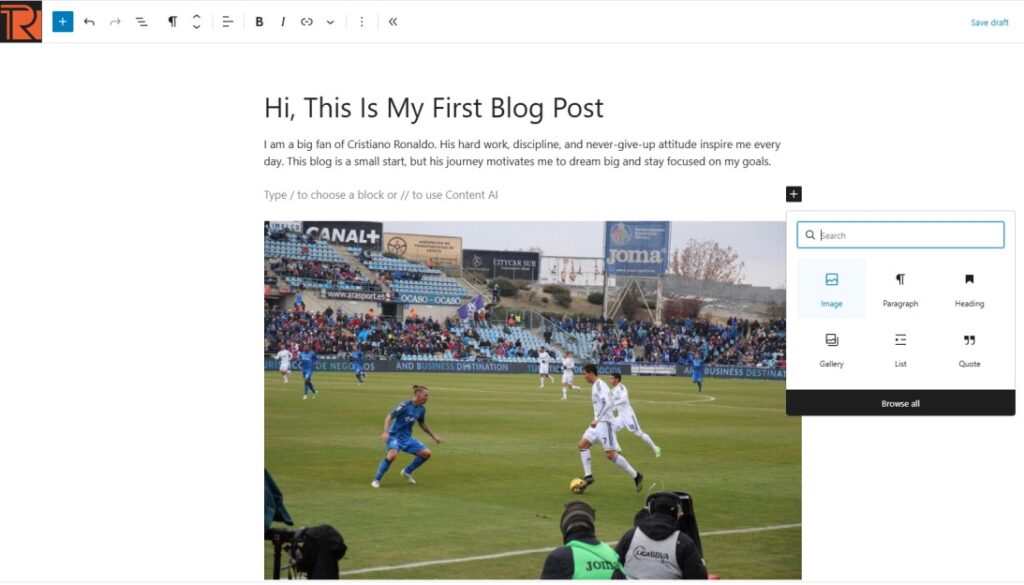
Images make your content more engaging and easier to understand.
To add an image:
- Click the + icon
- Select the Image block
- Upload an image or choose one from the Media Library
Always add alt text to images for better SEO and accessibility.
Step 5: Add Other Media Files
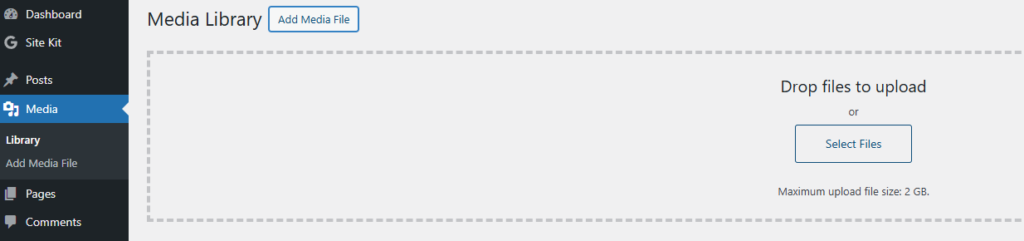
WordPress allows you to add more than just images. You can include:
- Videos
- Audio files
- PDFs and documents
You can upload media from Dashboard → Media → Add New or insert it directly using blocks inside the editor.
Step 6: Set a Featured Image
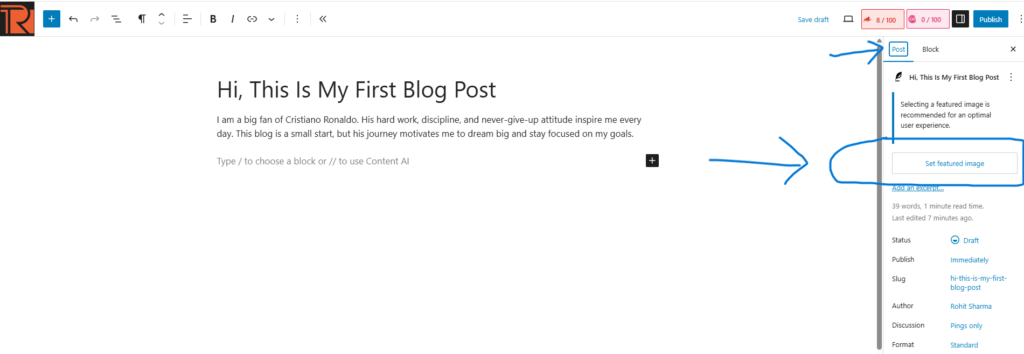
A featured image is the main image representing your post. It appears on:
- Blog listing pages
- Social media shares
- Search previews (depending on theme)
To set it:
- Open the Post Settings panel
- Click Featured Image
- Upload or select an image
Choose a high‑quality and relevant image that matches your content.
Step 7: Add Categories and Tags
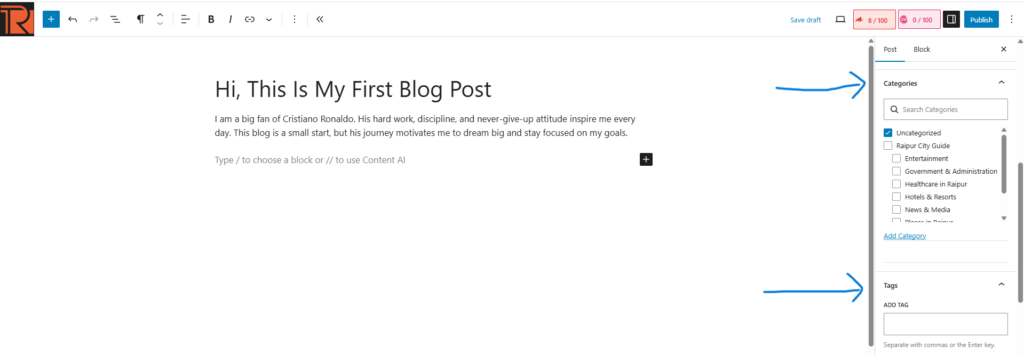
Categories and tags help organize your content and improve navigation.
- Categories represent the main topic
- Tags describe specific details
You can add or select them from the Post Settings panel.
Example:
- Category: WordPress
- Tags: create post, WordPress tutorial, blogging
Step 8: Set Permalink or URL Slug
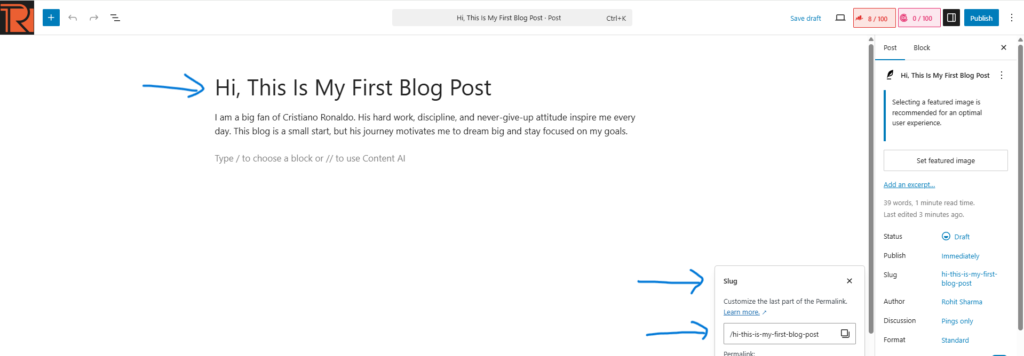
The permalink is your post’s URL. A clean URL improves SEO and user experience.
Example:
❌ yoursite.com/?p=123
✅ yoursite.com/hi-this-is-my-first-blog-post
Edit the slug from the Permalink option in Post Settings.
Step 9: Add an Excerpt
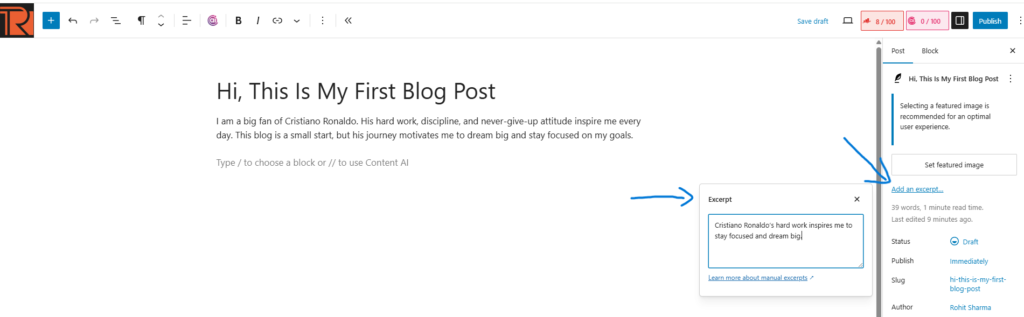
An excerpt is a summary of your post. It may appear on:
- Blog archive pages
- Search results
- Theme previews
You can manually write an excerpt in Post Settings → Excerpt to control how your content is presented.
Step 10: Choose the Author (Optional)
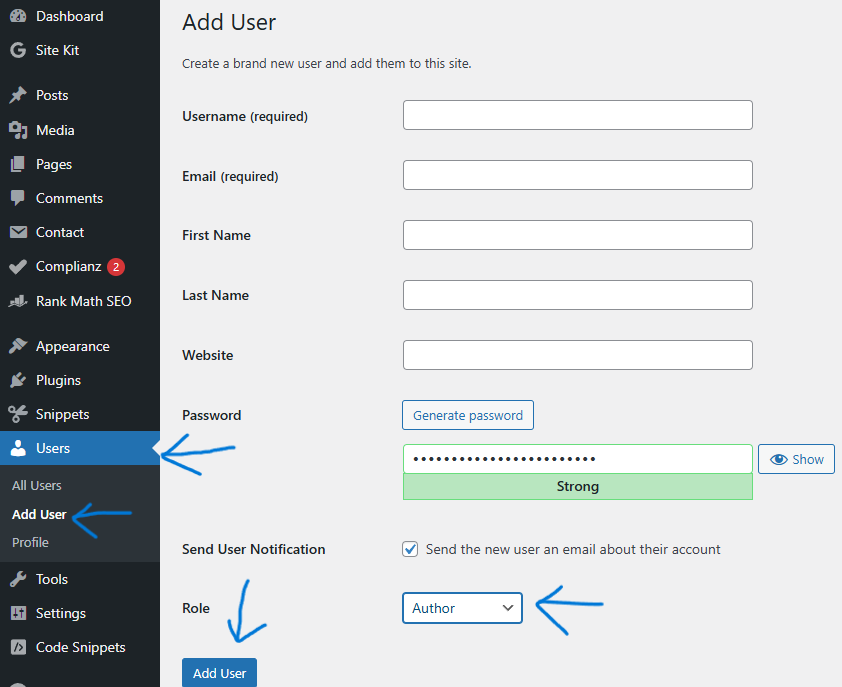
If your website has multiple writers, you can assign an author to each post.
Go to Post Settings → Author and select the appropriate user.
WordPress Post Publishing Options Explained
Before publishing, WordPress offers several useful options:
Draft
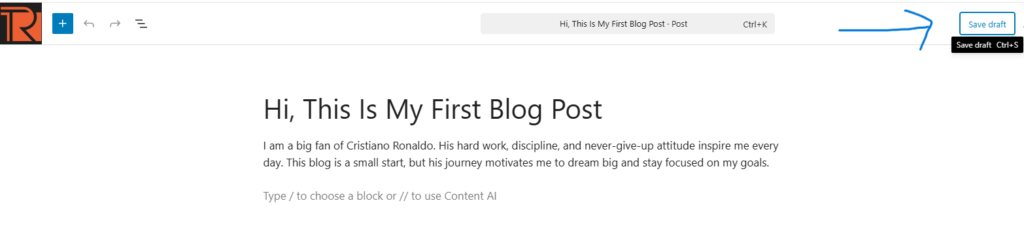
Saves your post without publishing it. Ideal for unfinished content.
Preview
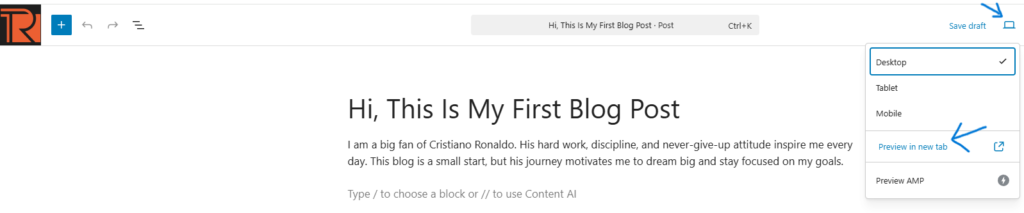
Let’s see how the post will look on desktop, tablet, and mobile before publishing.
Status and Visibility
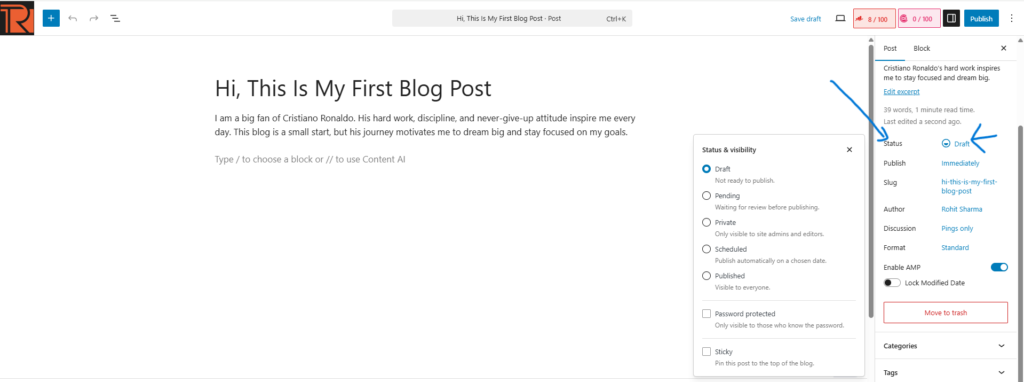
You can set the post as:
- Public
- Private
- Password protected
Scheduling
Schedule your post for a future date and time. Useful for planned content and consistency.
Sticky Post
Pins the post to the top of the blog page, even when new posts are published.
Pending Review
Marks the post for review before publishing. Helpful for multi‑author websites.
Publish
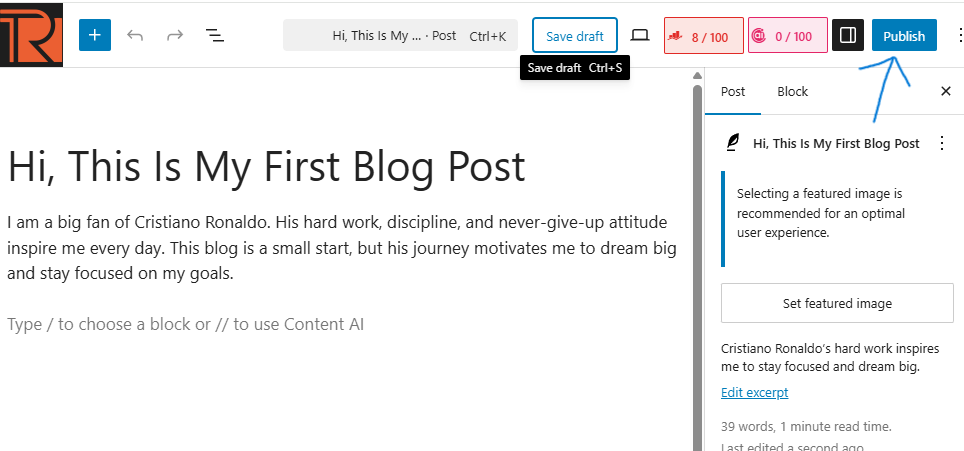
Once everything is ready, click Publish to make the post live.
Delete a Post
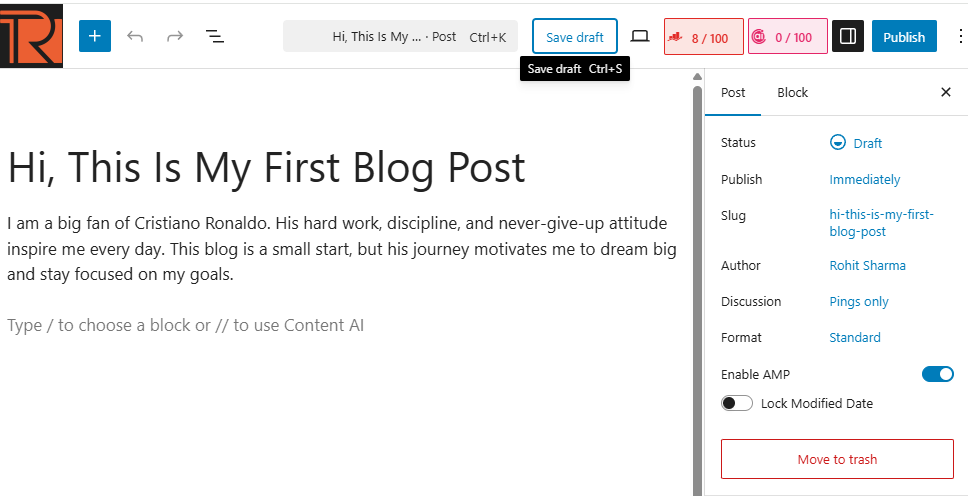
You can delete a post by:
- Clicking Move to Trash in the editor
- Or going to Posts → All Posts → Trash
Deleted posts remain in trash for 30 days.
Block Editor vs Classic Editor
Block Editor (Gutenberg)
- Default WordPress editor
- Uses blocks for content
- Flexible and design‑friendly
Classic Editor
- Old‑style editor
- Simple text formatting
- Requires plugin installation
For modern blogging and SEO, the block editor is recommended.
Conclusion
Learning how to create a new post in WordPress is essential for growing any website. A well‑structured post with proper titles, images, categories, and publishing settings improves user experience and search visibility.
By following this guide, you now know how to:
- Create and format WordPress posts
- Use media and featured images
- Optimize URLs and excerpts
- Publish content professionally
Now it’s time to start posting consistently and grow your WordPress site the right way.
If you have any questions related to WordPress or blogging, feel free to drop them in the comments. All the best 🚀