Key Takeaways
- The WordPress Admin Area is the backend of your website where you manage content, design, users, plugins, and settings.
- You can access the WordPress dashboard by visiting
yourdomain.com/wp-adminoryourdomain.com/wp-login.php. - The admin area is divided into three main sections: the Dashboard, Admin Toolbar, and Sidebar Menu.
- Every important website task, from publishing blog posts to installing plugins, happens inside the WordPress Admin Area.
- Learning how the WordPress backend works can save time and make website management much easier.
- Protecting your admin area with strong passwords, two-factor authentication, and regular updates is essential for website security.
- Once you understand the dashboard layout, navigating WordPress becomes simple, even for complete beginners.
You just installed WordPress. You’ve got a domain, a hosting plan, maybe even a theme picked out. But then someone says “just go to your admin area and change that setting” and you’re staring at your screen thinking, “where exactly is this admin area?”
Don’t worry. This guide covers everything you need to know about the WordPress admin area, what’s inside it, how to reach it, and how to make sure nobody else gets in without your permission.
If you’re still setting up your website, here’s how to start a WordPress blog.
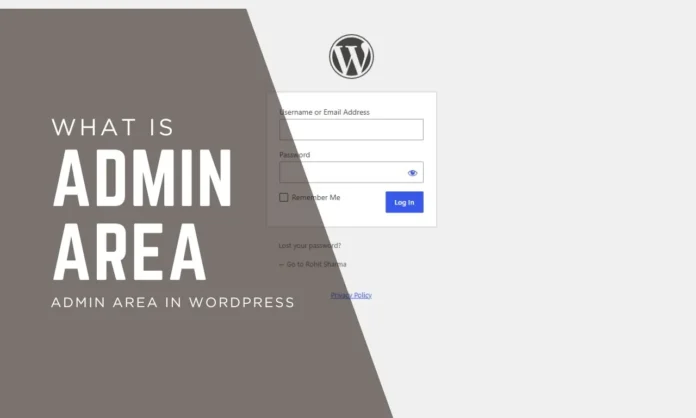
What Is the Admin Area in WordPress?
The admin area is the backend of your WordPress website. It’s the place where you control everything your visitors never see.
Think of it like the kitchen of a restaurant. Customers see the dining room (your website’s frontend). The admin area is where everything gets prepared, managed, and organized.
From your admin area, you can write posts, add pages, install plugins, change your theme, manage users, and adjust every setting on your site. Your visitors can’t access it. Only logged-in users with the right permissions can.
WordPress also calls this the wp-admin, the dashboard, or the WordPress backend. They all mean the same thing.
If you want to see how the dashboard works, check the official WordPress Dashboard documentation.
How to Access Your WordPress Admin Area
On a fresh WordPress install, you get to your admin area through a simple URL.
Option 1:
https://yourdomain.com/wp-adminOption 2:
https://yourdomain.com/wp-login.phpBoth take you to the WordPress login screen. Enter your username and password, and you’re in.
What If You Can’t Log In?
This happens more often than you’d think. Here’s what to do depending on your situation:
Forgot your login URL? If you changed your login URL using a plugin and can’t remember it, log in to your hosting control panel. Most hosts (Hostinger, SiteGround, Bluehost) have a direct WordPress login button from there.
Forgot your password? Click “Lost your password?” on the login screen. WordPress sends a reset link to your registered email address.
Account locked after too many attempts? Wait 20-30 minutes and try again. Or contact your host to temporarily remove the login attempt limit from the server side.
Completely locked out with no email access? You’ll need to reset your password directly from your hosting panel’s phpMyAdmin. Go to the wp_users table, find your username, and update the password field using MD5 encryption. This sounds technical, but most hosting panels walk you through it step by step.
What You’ll See Inside the Admin Area
Once you log in, the admin area has three main sections. Here’s exactly what each one does.
1. The Admin Toolbar (Top Bar)
There’s a black horizontal bar running across the top of your screen. This is the admin toolbar. It’s visible when you’re logged in, both in the backend and when you browse your live site.
The toolbar gives you quick access to:
- Your site’s homepage (click your site name)
- WordPress updates, theme updates, and plugin updates
- Comments waiting for moderation
- A shortcut to create a new post, page, or user
- Your profile and the logout button
Some plugins add their own icons to this toolbar too. That’s normal.
2. The Admin Sidebar (Left Navigation Menu)
The big vertical menu on the left side is your main navigation. Every section of your site is accessible from here.
Here’s what each menu item does:
- Posts is where you write, edit, schedule, and delete blog articles. You also manage categories and tags here.
- Media is your file library. Every image, PDF, and video you upload to WordPress lives here.
- Pages is for static content like your About page, Contact page, or Homepage. Pages don’t have categories or tags.
- Comments is where you approve or delete comments left by your visitors.
- Appearance is where you switch themes, edit your navigation menus, and manage widgets.
- Plugins is where you install, activate, deactivate, or delete plugins. Think of plugins as apps for your website.
- Users is where you add team members, set their roles (like Author or Editor), and manage account details.
- Tools lets you import content from other platforms or export your WordPress data.
- Settings is where you configure your site title, tagline, URLs, time zone, reading options, discussion settings, and more.
You can collapse this sidebar by clicking the small arrow at the very bottom of it if you want more screen space.
3. The Dashboard (Center Panel)
The dashboard is the first thing you see after logging in. It’s an overview screen with several boxes called widgets.
By default, you’ll see:
- At a Glance shows your total post count, page count, comment count, your current theme, and WordPress version.
- Site Health Status tells you if your WordPress setup has any security or performance issues that need attention. A “Good” status means everything is fine.
- Activity shows recently published posts and the latest comments.
- Quick Draft lets you jot down a post idea and save it as a draft without going to the full editor.
- WordPress Events and News shows upcoming WordCamp events and official WordPress news.
- Welcome gives you quick setup links when you first install WordPress. You can dismiss it once you’re done with the initial setup.
You can remove boxes you don’t need or add new ones by clicking “Screen Options” in the top right corner of the dashboard. You can also drag and drop the boxes to rearrange them however you like.
How to Customize Your WordPress Admin Area
The admin area doesn’t have to look the way it does by default. WordPress gives you a few built-in options to change it.
Change the color scheme. Go to Users > Profile. Scroll down to “Admin Color Scheme.” WordPress has 9 color options built in: Default (blue), Light, Modern, Blue, Coffee, Ectoplasm, Midnight, Ocean, and Sunrise. Pick one and save. It only changes the look for your account, not other users.
Enable dark mode. WordPress doesn’t have a built-in dark mode. But a free plugin called Dark Mode for WP Admin adds it in one click. Good for working late nights.
Change or remove the “Howdy” greeting. That “Howdy, [Name]” text in the top right is hardcoded in WordPress. You can change it to anything you want using a free plugin called Remove Howdy or by adding a small code snippet to your theme’s functions.php file.
Rearrange your dashboard widgets. Click and drag any widget box to a new position. You can also collapse them by clicking the small arrow on each widget’s title bar. Use Screen Options to hide the ones you never use.
How to Secure Your WordPress Admin Area
This is the part most beginners skip. And that’s exactly why so many WordPress sites get hacked.
Your admin area controls everything on your site. If someone breaks in, they can delete your content, install malware, or completely take over your website.
Here are the most important steps to protect it:
Change your default login URL. By default, every WordPress site uses /wp-admin or /wp-login.php. Hackers know this too. They run automated bots that try thousands of username and password combinations on these URLs every single day. A plugin like WPS Hide Login lets you change your login URL to something only you know.
Use a strong password. “password123” or your site name is not a password. Use a random combination of letters, numbers, and symbols. WordPress’s built-in password generator creates strong ones automatically.
Enable two-factor authentication (2FA). Even if someone gets your password, 2FA makes them verify their identity through your phone or email before they can log in. Plugins like WP 2FA set this up in minutes.
Limit login attempts. By default, WordPress lets anyone try to log in as many times as they want. A plugin like Limit Login Attempts Reloaded blocks an IP address after too many failed tries.
Keep WordPress, themes, and plugins updated. Most WordPress hacks happen through outdated software. Updates usually contain security patches. Check your admin toolbar for the orange update notification and act on it quickly.
Mistakes Beginners Make in the Admin Area
Installing too many plugins. Every plugin adds code to your site. More plugins mean slower load times and more security risks. Only install plugins you actually need.
Ignoring updates. That orange circle in your toolbar with a number on it? That’s WordPress telling you something needs updating. Ignoring it is how sites get compromised.
Giving everyone Administrator access. If you hire a freelance writer, they don’t need full admin access to write posts. Give them the “Author” or “Editor” role instead. Use the minimum permission level each person needs and nothing more.
Not backing up before making changes. Before you edit anything in Settings or Appearance, take a backup. Plugins like UpdraftPlus handle this automatically.
Final Takeaway
The WordPress admin area is your website’s control center. Every post you publish, every plugin you install, every setting you change happens from here.
Once you’re comfortable with the dashboard, the next step is learning WordPress SEO to grow your traffic.
The learning curve is short. Spend 10 minutes clicking through each sidebar menu, and you’ll know where everything is. Focus early on securing your login page, keeping software updated, and assigning correct user roles.
That’s really all there is to it. The admin area isn’t complicated. It just looks like a lot at first glance.