Key Takeaways
- Smash Balloon is the best WP Instagram plugin for most users. It has the easiest setup, and the free version is genuinely usable.
- You need a professional Instagram account. Personal accounts stopped working with most plugins after Meta’s 2024 API changes.
- Set your cache to 1-2 hours minimum. Anything shorter causes too many API calls and can get your site temporarily blocked.
- Elfsight for design, EmbedSocial for reliability. Pick Elfsight if pixel-perfect control matters. Pick EmbedSocial if your feed absolutely cannot go down.
- Never load more than 18 posts at once. It destroys your page speed, especially on mobile devices.
There are over 800 Instagram-related plugins in the WordPress directory. After testing dozens of them on client sites over the past few years, I can tell you honestly: most of them aren’t worth the five minutes it takes to install them.
They break when Meta updates the Instagram Graph API. They slow your page down with unoptimized scripts. And they leave you staring at error messages you don’t know how to fix.
This article is different. I’ve installed every WordPress Instagram plugin listed here on actual websites. I’ve set them up for bakeries, photographers, ecommerce stores, and personal blogs. I’ve watched them break during API changes and I’ve seen which ones recovered fastest.
By the end, you’ll know exactly which WP Instagram plugin fits your situation. Not which one markets itself the loudest. Which one actually works.
Why Bother With a WordPress Instagram Plugin?
You don’t technically need a plugin to embed Instagram feed content on your site. WordPress lets you paste any Instagram post URL directly into the editor, and it turns into an embed block.
But try doing that with twelve posts. You get twelve separate embed blocks, each loading its own JavaScript from Instagram’s servers. I saw this exact setup on a client’s homepage last year. Their page load time was 6.2 seconds. After we replaced those twelve individual embeds with a single WP Instagram plugin, it dropped to 2.1 seconds.
There’s a business reason too. When someone lands on your site and sees actual customers wearing your jewelry or eating at your restaurant, they don’t have to take your word for it. The proof is right there. That’s harder to fake than a written testimonial, which is exactly why visitors trust it more.
A proper WordPress Instagram feed plugin pulls your posts once, saves them on your server, and shows that saved version to visitors. Instagram could go down completely and your feed would still look fine because it’s running off the copy stored on your site, not a live connection.
How Instagram Feeds Actually Work
Before picking an Instagram plugin for WordPress, you need to understand two things: the API and access tokens.
API stands for Application Programming Interface. Think of it like a waiter at a restaurant. Your WordPress site is the customer. Instagram’s servers are the kitchen. The API is the waiter who carries your request to the kitchen and brings the data back.
Access token is like a VIP pass. Instagram won’t let just anyone pull data from their servers. The access token is a long string of letters and numbers that proves your website has permission to see a specific account’s public posts.
Here’s what most guides don’t explain: since Meta rolled out the Instagram Graph API changes in 2024 and continued tightening access through 2025, almost every WP Instagram plugin now requires a business or creator account connected to a Facebook Page. Your personal Instagram account won’t work anymore. If a plugin tells you it works with just a username, it’s either outdated or using a workaround that will stop working soon.
The good news? Switching to a professional account takes about thirty seconds. Open Instagram, go to Settings, tap Account, and tap Switch to Professional Account. You don’t lose anything. Your profile looks the same. You just gain API access.
The 5 Best WP Instagram Plugins After Real Testing
I picked these five based on active maintenance, real-world reliability, and actual usefulness. I’ve installed each one on at least three different websites. Here’s what I found.
1. Smash Balloon Instagram Feed
Best for: Most WordPress users who want something reliable.
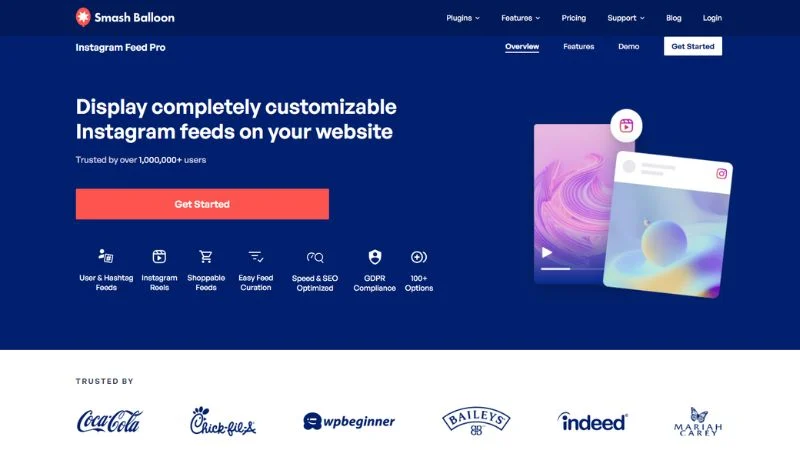
Smash Balloon is the most popular Instagram feed plugin for WordPress, and after using it on roughly twenty client sites, I understand why. The setup process is genuinely simple. You click a button, a popup appears, you log into Instagram, and your feed is connected.
The free version at wordpress.org/plugins/instagram-feed lets you display your recent posts in a grid. You can adjust columns, spacing, and image size. That covers maybe sixty percent of use cases.
The pro version unlocks hover effects, a clean lightbox for viewing full-size images, Instagram Reels support, and shoppable tags that let visitors click a product in your photo and land on your product page. I set up shoppable tags for a clothing boutique last month and they tracked three direct sales from the feed in the first week.
Pricing (As of July 2026):
- Basic: $49/year (1 site) – Introductory price, renews at $98/year
- Plus: $99/year (5 sites) – Introductory price, renews at $198/year
- Elite: $149/year (10 sites) – Introductory price, renews at $298/year
- All Access Bundle: $299/year (Unlimited sites, all their social plugins) – Introductory price, renews at $598/year
Strengths:
- Simplest setup of any plugin I’ve tested
- Excellent documentation with real screenshots
- Caching system that doesn’t slow your site
- Responsive support that actually replies within hours
- Regular updates that keep pace with Meta’s API changes
Limitations:
- Free version feels limited once you’ve seen what pro does
- Some visual styling requires custom CSS knowledge
- Lightbox in the free version includes Smash Balloon branding
- Introductory pricing is heavily discounted; renewal costs double
Real experience: I installed the free version for a local coffee shop’s website. Connected their account in two minutes. Set a 3-column grid. They’ve had zero issues in eight months. That’s exactly how a WordPress Instagram plugin should work.
2. Elfsight Instagram Feed
Best for: Designers who need pixel-perfect control.
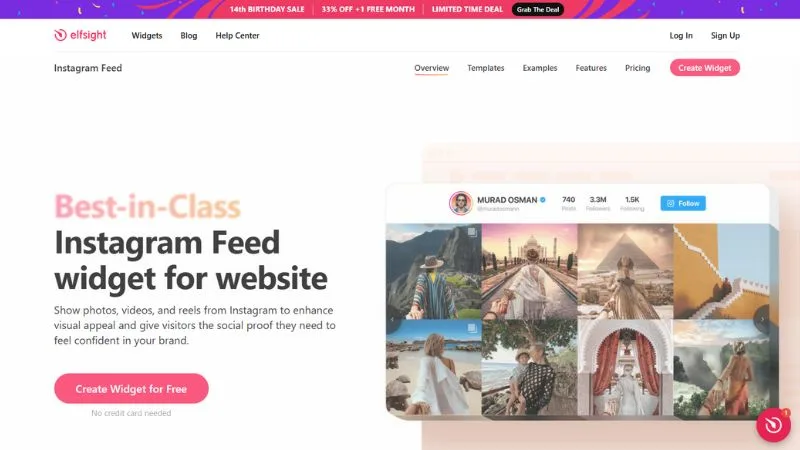
Elfsight takes a different approach. Instead of a standard settings page, it gives you a visual widget builder. You customize your feed in a drag-and-drop editor, see exactly what it looks like, then drop it on your site.
With most plugins, you tweak settings in a dashboard and hope it looks right on the front end. With Elfsight, you see what you’re building while you build it. That sounds like a small thing, but it saved me probably an hour of back-and-forth on a photographer’s portfolio site.
Pricing (As of July 2026):
- Free: $0 (1 widget, 200 views/month, 5 sources, Elfsight branding)
- Basic: $4/month ($48/year) (3 widgets, 5,000 views/month)
- Pro: $8/month ($96/year) (9 widgets, 50,000 views/month, 1 collaborator)
- Premium: $16/month ($192/year) (21 widgets, 150,000 views/month, 3 collaborators)
Strengths:
- Visual builder is genuinely useful, not a gimmick
- Template library with modern designs that don’t look like a widget
- Supports Instagram Stories, Reels, and regular posts in one feed
- Works cleanly with Elementor, Divi, Breakdance, and other page builders
- Scripts load lazily so they don’t block page rendering
Limitations:
- Strict view limits on paid tiers (5k to 150k views)
- Free version is very restricted, basically a trial
- Subscription pricing means you pay every year forever
- Adds a layer of complexity that simple sites don’t need
Real experience: A fashion brand client needed their feed to match their exact color palette and font. Elfsight’s visual builder let me match everything in about twenty minutes. With Smash Balloon, that same customization would have required custom CSS and trial-and-error.
3. Insta Gallery (Social Feed Gallery)
Best for: Budget-conscious users who need a fast, simple grid.
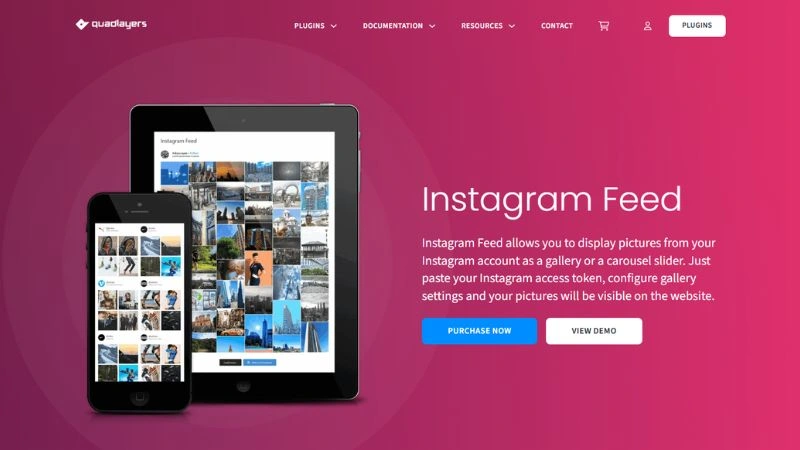
Insta Gallery at wordpress.org/plugins/insta-gallery is the humblest plugin on this list. No fancy marketing. No visual builder. Just a settings page and a grid.
But it’s remarkably lightweight. After running it through testing tools on three different sites, the plugin added less than 50KB of JavaScript to each page. Compare that to some Instagram plugins that load 300KB or more for features most users never touch.
The free version supports basic grids, masonry layouts, and a lightbox. You can adjust columns, spacing, and image size. There’s also a “load more” button that pulls additional posts without reloading the page. That small detail makes a real difference for accounts posting frequently.
Pricing (As of July 2026):
- Personal: $49/year (1 site)
- Agency: $99/year (5 sites)
- Developer: $149/year (Unlimited sites)
- Lifetime Options: $99 (1 site), $199 (5 sites), $299 (Unlimited sites)
Strengths:
- Extremely lightweight, barely affects page speed
- Free version is genuinely usable, not a teaser
- Masonry layout option that most free plugins skip
- Simple settings with almost no learning curve
- No branding on the free version
- Lifetime pricing available, which is rare
Limitations:
- Design options are basic, you won’t create anything fancy
- No visual preview, you adjust settings and check the front end
- Reels support is limited and inconsistent
- Fewer caching controls, meaning more frequent API calls
- Documentation is thin, you’ll figure it out but don’t expect guidance
Real experience: I set up Insta Gallery in a sidebar widget for a personal blog. Three columns, small images, masonry layout. Took three minutes. The blog owner didn’t want to pay for a pro plugin and didn’t need anything fancy. Eight months later, it still works fine.
4. Feed Them Social
Best for: Businesses that need feeds from multiple social platforms.
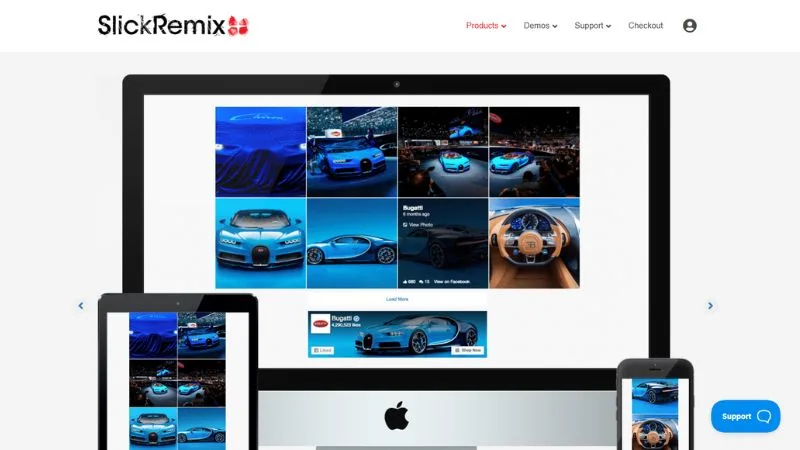
If you need an Instagram feed but also want to show Facebook posts, Twitter updates, and YouTube videos in the same system, Feed Them Social at wordpress.org/plugins/feed-them-social is built for exactly that.
Each social platform is a separate feed type, but they all live inside one interface. You create an Instagram feed, a Facebook feed, a YouTube feed, then display them individually or combine them into a social wall.
The Instagram-specific features are solid but not the best in this list. You get grids, carousels, and a lightbox. But the setup requires creating a Facebook App and manually generating an access token. When I walked a client through this process over a video call, it took about twenty minutes. Compare that to Smash Balloon’s two-minute connection.
Pricing for Instagram Slider Extension (As of July 2026):
- Single Site: $40/year
- 2-5 Sites: $60/year
- 6-25 Sites: $120/year
- All Access Pass: $199/year (Unlimited sites, all extensions)
Strengths:
- True multi-platform support, not Instagram with extras bolted on
- Social wall feature that mixes content from different platforms
- Decent caching that minimizes API calls
- Responsive designs that handle mobile well
- One plugin instead of installing four separate ones
Limitations:
- Setup is more technical than any single-platform option
- Interface feels dated compared to newer plugins
- Instagram-specific features lag behind Smash Balloon and Elfsight
- Documentation assumes comfort with Facebook’s developer tools
Real experience: A marketing agency I work with manages social media for clients across four platforms. Instead of four separate feed plugins, they use Feed Them Social everywhere. The setup is harder the first time, but once you learn the process, it’s repeatable across client sites.
5. EmbedSocial
Best for: Businesses where feed uptime matters more than cost.
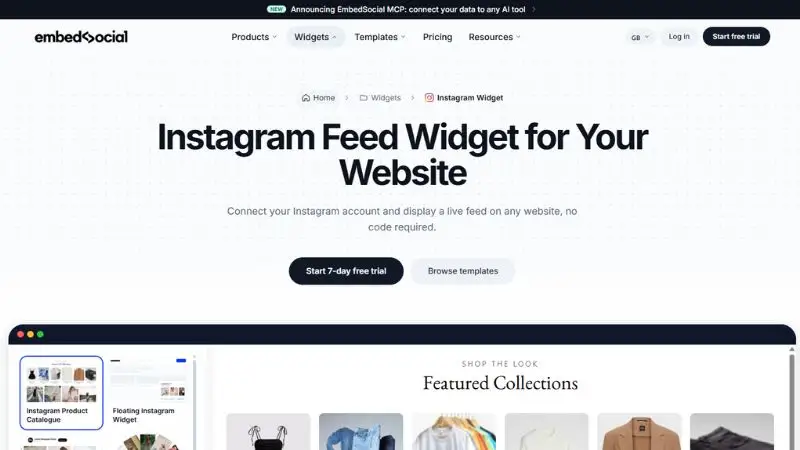
EmbedSocial is less known in the WordPress space but has a strong reputation in the broader social media tools market. Their WordPress plugin is a gateway to their cloud platform, which handles all the API complexity on their servers instead of yours.
This architecture has a real advantage. When Meta changes the Instagram Graph API, which has happened multiple times since 2024, EmbedSocial updates their cloud service and your feed keeps working without you touching anything. With traditional plugins, you’re waiting for the developer to push a WordPress update.
Pricing (As of July 2026):
- Free: $0 (Branded, limited features)
- Pro: $29/month (Unbranded, hashtag feeds, shoppable tags, AI moderation)
Strengths:
- Cloud-based API handling means fewer breakages during changes
- Strong Reels and Stories support
- Moderation tools that let you hide specific posts without deleting them from Instagram
- Analytics showing which posts get the most clicks on your site
- Auto-update that refreshes your feed without manual intervention
Limitations:
- Most expensive option by a wide margin at $348/year
- Requires an EmbedSocial account, the plugin doesn’t work standalone
- Some settings redirect you to their website, less WordPress-native feel
- Not ideal if you want to avoid third-party dependencies
Real experience: An ecommerce client runs flash sales where site traffic spikes for 48 hours. They can’t afford a broken feed during those windows. I set up EmbedSocial as a backup. During one weekend when Instagram’s API had issues, Smash Balloon’s feed on their blog page went blank but EmbedSocial’s feed on the homepage stayed live because it was serving from EmbedSocial’s cached cloud version.
Side-by-Side Comparison
| Feature | Smash Balloon | Elfsight | Insta Gallery | Feed Them Social | EmbedSocial |
|---|---|---|---|---|---|
| Best for | Most users | Designers | Budget sites | Multi-platform | Uptime |
| Starting Price | $49/year | $48/year | $49/year | $40/year | $348/year |
| View Limits | None | 5k – 150k/mo | None | None | None |
| Lifetime Option | No | No | Yes ($99-$299) | No | No |
| Setup ease | Very easy | Moderate | Easy | Technical | Easy |
| Visual builder | No | Yes | No | No | Partial |
| Reels support | Pro only | All plans | Limited | Yes | All plans |
| Stories support | Pro only | All plans | No | No | All plans |
| Hashtag feeds | Pro only | All plans | No | Pro only | Pro only |
| Page builder compat | Good | Excellent | Good | Good | Good |
| Performance impact | Low | Low | Very low | Medium | Low |
| Cache control | Good | Good | Basic | Good | Cloud-based |
How to Pick the Right Instagram Plugin for WordPress
Forget the feature lists for a minute. The right WP Instagram plugin comes down to three questions.
First: what happens if your feed disappears for two days?
If the answer is “not a big deal,” go with Insta Gallery or the free version of Smash Balloon. If the answer is “we lose sales” or “our homepage looks broken,” you need Smash Balloon Pro or EmbedSocial. The cost is worth the reliability.
Second: does the feed need to match your design exactly?
If you’re using a custom theme and every pixel matters, Elfsight’s visual builder will save you hours. If a standard grid looks fine on your site, you’re paying for something you won’t use.
Third: will you need other social feeds later?
If you’ll eventually want Facebook, Twitter, or YouTube feeds, start with Feed Them Social now. Switching plugins later means redoing your entire setup.
Everything else, like Reels support and hover effects, is secondary. Answer these three questions first, then see if the extras justify the price.
Who Should Use Which Plugin
Bloggers and personal sites: Smash Balloon free version. Connects in two minutes, looks clean, you’ll never think about it again.
Ecommerce stores: Smash Balloon Pro. The shoppable tags feature lets visitors tap a product in your photo and go straight to that product page. I’ve seen this drive direct sales, which easily justifies the $49/year.
Photographers and designers: Elfsight. The masonry layouts and lightbox options make your photos look like they belong in a gallery, not a widget bolted onto a page.
Agencies managing multiple clients: Feed Them Social. One plugin covers all major platforms with a consistent interface across every client site.
Sites where downtime costs money: EmbedSocial. The cloud-based caching means your feed survives even when Instagram’s API has problems.
Anyone with zero budget: Insta Gallery. Free, fast, and does the job without trying to upsell you on every screen.
Installation Walkthrough
I’ll walk through Smash Balloon since it’s the most common choice and the simplest to set up. If you choose a different WordPress Instagram feed plugin, the general steps are similar but the connection process might differ. Elfsight and EmbedSocial both require creating an account on their platforms first. Feed Them Social requires the manual Facebook App setup I mentioned earlier.
Step 1: Install the plugin
Go to your WordPress dashboard. Look at the left sidebar and find “Plugins.” Click it, then click “Add New.” In the search box at the top right, type “Smash Balloon Instagram Feed.” You’ll see it appear near the top with a pinkish-orange camera icon. Click “Install Now.” Once that finishes, click “Activate.”
Step 2: Connect your Instagram account
After activating, you’ll see a new “Instagram Feed” option in your sidebar. Click it. On the settings page, look for the blue button that says “Connect an Instagram Account.” Click it.
A popup window will appear asking you to log into Instagram. Use the account whose photos you want to display. You’ll see a permissions screen explaining that the plugin is requesting access to your public content. Click “Allow.”
The popup closes and you’re back on your WordPress settings page. Your profile photo and username should now be visible, confirming the connection worked.
Step 3: Configure your feed
On that same page, scroll down to the feed settings. You’ll see options for number of posts, number of columns, and image size. For a standard homepage feed, 12 posts in 3 or 4 columns with medium-sized images works well on both desktop and mobile.
Click “Save Changes” at the bottom.
Step 4: Add the feed to a page
Open the page where you want the feed. Click the “+” button to add a new block. Search for “Instagram Feed” and you’ll see a block with the Smash Balloon icon. Click it. The block loads your feed immediately, pulling live data from your connected account.
If you’re using Elementor, look for the Smash Balloon widget in the widget panel. If you’re using Divi, there’s a dedicated module. Most premium WordPress Instagram plugins include integrations for the major page builders, though the free versions sometimes don’t. Check the plugin’s documentation if you don’t see the option in your page builder.
Publish or update the page. Check the front end. Your feed should be visible.
Five minutes, give or take. The next feed you add will be even faster since your account is already connected.
Common Mistakes That Break Your Feed
I’ve fixed the same problems across dozens of sites. Here are the ones that come up most often.
Using a personal account instead of a professional account.
Since the Instagram Graph API changes, most WP Instagram plugins need a business or creator account linked to a Facebook Page. If your feed suddenly stopped working in 2024 or 2025, this is probably why. Switching is free and takes thirty seconds in Instagram’s settings.
Setting cache time too short.
Your plugin saves a copy of your Instagram data so it doesn’t call Instagram’s servers on every page load. If you set the cache to one hour and you get a hundred visitors in that hour, that’s a hundred API calls. Instagram might temporarily block your site for making too many requests. Set cache time to at least one or two hours. Your feed doesn’t need to update in real time.
Not clearing cache after changing settings.
You change columns from three to four, save, check your page, and nothing changed. This happens because the old cached version is still being served. Look for a “Clear Cache” button in your plugin’s settings and click it after any visual change.
Ignoring plugin updates.
When Meta updates the Instagram Graph API, your plugin needs a corresponding update. I’ve seen feeds stay broken for weeks because the site owner kept dismissing the update notification. Install plugin updates within a few days of seeing them.
Loading too many posts at once.
Fifty Instagram photos in a single grid means loading fifty images on page load. On mobile, that’s painful. Show twelve to eighteen posts and use a “Load More” button if you want visitors to see more.
Placing the feed above the fold on every page.
Your Instagram feed is supporting content, not primary content. If it loads before your main headline, it’s competing for attention and slowing down the first impression. Put it below the fold or on specific pages, not in a site-wide header or sidebar.
Troubleshooting Specific Errors
These are the error messages I see most often when clients call about broken feeds.
“Error 190: Invalid OAuth access token”
Your access token expired or was revoked. Go to your plugin’s settings, disconnect your account, and reconnect it. This fixes it ninety percent of the time. If it doesn’t, the issue might be that you disconnected your Instagram account from its Facebook Page. Reconnect them in Instagram’s settings, then redo the plugin connection.
“No posts found” or empty grid
Three things to check. First, is your Instagram account set to public? Private accounts won’t display posts. Second, did you recently switch from a professional account back to a personal account? That breaks the API connection. Third, check if your feed is pulling from the correct account. If you manage multiple Instagram accounts, it’s easy to connect the wrong one.
“Instagram feed not loading” with a spinning loader
This usually means the API request is timing out. Check if Instagram.com itself is loading in your browser. If Instagram is experiencing an outage, your feed won’t load until they fix it. This is exactly the scenario where a cloud-cached solution like EmbedSocial keeps your feed visible while others go blank.
Feed shows old posts and won’t update
Your cache isn’t refreshing. Check your plugin’s cache settings and make sure the cache duration isn’t set to something extreme like “indefinitely.” Clear the cache manually and see if new posts appear. If they don’t, reconnect your account to generate a fresh access token.
Privacy and GDPR Considerations
Here’s something most WordPress Instagram plugin reviews ignore completely. When you load an Instagram feed on your site, you’re loading scripts from Meta’s servers. For visitors in the European Union, this means their data is being transferred to the United States, which has GDPR implications.
If you run a site that targets European visitors, you need a cookie consent solution that blocks third-party scripts until the user consents. Some Instagram plugins handle this better than others. Smash Balloon has a setting to disable loading until user consent is given. Others don’t offer this and you’d need a separate cookie consent plugin to handle the blocking.
There’s also an accessibility consideration. Instagram posts often contain image alt text, but not every WP Instagram plugin passes that alt text through to your WordPress site. If accessibility matters for your audience, check whether the plugin you’re considering preserves alt text from Instagram. Smash Balloon and EmbedSocial handle this reasonably well. Insta Gallery’s free version does not.
FAQs
What is the best WP Instagram plugin?
Smash Balloon Instagram Feed is the best overall choice for most WordPress sites. It offers the easiest setup, reliable caching, and regular updates that keep pace with Meta’s API changes. The free version covers basic grid displays, while the pro plan at $49/year adds Reels support, shoppable tags, and a branded-free lightbox.
How do I embed an Instagram feed in WordPress without a plugin?
Paste any Instagram post URL directly into the WordPress block editor and it will automatically convert into an embed. However, this only works for individual posts, not full feeds. To display multiple posts, you’d need to paste each URL separately, which loads heavy JavaScript from Instagram’s servers for every single post. This approach noticeably slows page load times and doesn’t work well for more than two or three posts.
What is the best free Instagram plugin for WordPress?
Smash Balloon’s free version is the most reliable free option. Insta Gallery is also solid if you specifically want masonry layouts and the lightest possible page weight. Both have their limits compared to pro versions, but neither will break your site or disappear overnight.
How do I link my Instagram to my WordPress website?
Install any WordPress Instagram feed plugin, navigate to its settings page, and click the button to connect your account. You’ll need a professional (business or creator) Instagram account linked to a Facebook Page. A popup will ask you to log into Instagram and grant permission. Once you approve, the connection is established and your posts can be displayed on your site.
Why is my Instagram feed not showing on WordPress?
The most common cause is using a personal Instagram account instead of a professional account. Since the Instagram Graph API changes, most plugins require business or creator accounts. Other common causes include expired access tokens (reconnect your account), corrupted cache (clear it in your plugin settings), or an outdated plugin version (check for updates).
Does an Instagram feed slow down WordPress?
A properly configured WordPress Instagram feed plugin adds minimal load time, usually under 200 milliseconds. But a poorly configured one with no caching, too many posts, and full-resolution images can add one to two seconds. Always use your plugin’s image size setting to load thumbnails instead of original files, and keep your post count between twelve and eighteen.
Can I display Instagram posts from a specific hashtag?
Yes, but mostly on paid plans. Smash Balloon Pro, Elfsight’s paid plans, and EmbedSocial’s paid plans all support hashtag-based feeds. This is useful if you want to display customer photos that mention your brand. Note that hashtag feeds require additional API permissions and are more prone to breaking during Meta’s policy changes.
Can I show Instagram Stories on my WordPress site?
Smash Balloon supports Stories only on its pro plan. Elfsight and EmbedSocial support Stories on all paid plans. The free versions of most plugins do not support Stories. Keep in mind that Stories disappear after 24 hours on Instagram, so your WordPress feed will only show the most recent active Stories, which can create a constantly changing display.
Do I need to reconnect my Instagram account regularly?
Under normal conditions, no. Access tokens last indefinitely as long as your account stays active, public, and connected to its Facebook Page. If you change your Instagram password, disconnect the Facebook Page link, or switch back to a personal account, you’ll need to reconnect. If you’re reconnecting more than once every few months, something in your configuration is wrong.
How do I fix Instagram feed not working after an update?
First, clear your plugin’s cache. Second, disconnect and reconnect your Instagram account to generate a fresh access token. Third, check if the plugin has released a follow-up update addressing the issue. If none of these work, check the plugin’s support forum. During major Meta API changes, plugin developers typically post temporary workarounds within 24 to 48 hours.
Final Recommendation
If you’re reading this and just want a clear answer, here it is.
Get Smash Balloon Instagram Feed. Free version if you’re a blogger, hobbyist, or small local business. Pro version at $49 per year if you’re running a business where the feed directly supports revenue.
It’s not the cheapest option. It doesn’t have the prettiest builder. But it’s the most reliable WordPress Instagram plugin I’ve used, and it’s the one I install by default on client sites.
The exceptions are straightforward. Choose Elfsight if design customization is your priority and you’re comfortable with subscription pricing. Choose Insta Gallery if your budget is zero and you just need a basic grid. Choose Feed Them Social if you need multiple social platforms in one system. Choose EmbedSocial if your business cannot tolerate any feed downtime.
Everything else is noise.
Conclusion
I know an Instagram feed sounds like a minor detail on a website. But the difference between the right WP Instagram plugin and the wrong one is the difference between something you set up once and forget about, and something you’re troubleshooting every other week.
The wrong choice wastes your time. You spend a Saturday morning trying to figure out why your feed went blank. Or you pay for a pro plan when the free version would have worked fine. Or worse, a potential customer visits your site during a busy period and sees an empty rectangle where your photos should be.
The right choice is invisible. It loads fast, updates automatically, and makes your site look more credible without demanding your attention.
Pick your plugin from the options above, follow the installation steps, and get back to the work that actually matters.