Key Takeaways
- Increase PHP memory to 256M for most WordPress websites.
- WooCommerce and large websites should use 512M.
- You can increase PHP memory using wp-config.php, .htaccess, php.ini, or cPanel.
- If the error still appears after increasing the limit, a plugin or theme is likely causing the problem.
- Always back up your website before editing WordPress files.
What Does Increase PHP Memory Mean?
If you’ve seen an error like this:
Fatal error: Allowed memory size exhausted...don’t panic.
Your website isn’t hacked. Your hosting isn’t necessarily broken either.
The problem is simple. WordPress has run out of PHP memory.
Think of PHP memory as your website’s working desk.
Every plugin, theme, and background task needs some space to work. If too many things are running at the same time, the desk becomes full. WordPress can’t complete the task and throws a memory exhausted error.
That’s why increasing PHP memory gives WordPress more room to handle requests without crashing.
For most websites, increasing PHP memory takes less than five minutes.
What Is the PHP Memory Limit?
The PHP memory limit is the maximum amount of RAM a single PHP process can use.
Every time someone visits your website, PHP loads your theme, plugins, database queries, and page content.
If everything fits within the allowed memory, the page loads normally.
If it goes beyond the limit, WordPress stops the process and shows an error.
Most hosting companies use one of these default limits:
| Website Type | Recommended PHP Memory |
|---|---|
| Small blog | 128M |
| Business website | 256M |
| Blog with many plugins | 256M |
| WooCommerce store | 512M |
| Multisite | 512M to 1GB |
Setting the right memory limit improves stability, especially if your website uses page builders, backup plugins, or WooCommerce.
Signs You Need to Increase PHP Memory
Not every WordPress error is related to memory.
Here are the most common signs.
- White screen of death
- “Allowed memory size exhausted” error
- “There has been a critical error on this website”
- Admin dashboard becomes very slow
- Backup plugins fail halfway
- Large imports stop suddenly
- Elementor or other page builders crash while editing
- WooCommerce checkout randomly fails
If you notice one or more of these problems, increasing PHP memory is usually the first thing to check.
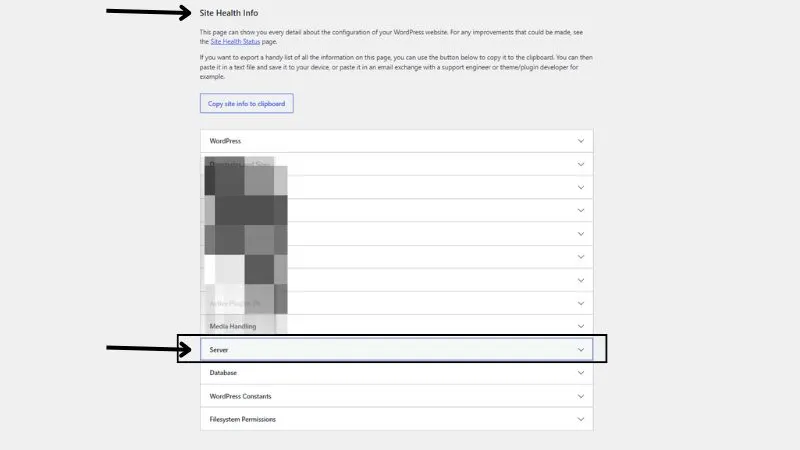
Check Your Current PHP Memory Limit
Before changing anything, find out your current memory limit.
It’s built into WordPress.
Go to:
Tools → Site Health → Info → Server
Look for:
PHP Memory Limit
You’ll see something like:
128M
256M
512M
If your website already has 512M and you’re still getting memory errors, the issue probably isn’t the memory limit. It’s likely a plugin or theme consuming too much memory.
Checking this first saves a lot of time.
Method 1. Increase PHP Memory Using wp-config.php
This is the easiest and most popular method.
Step 1
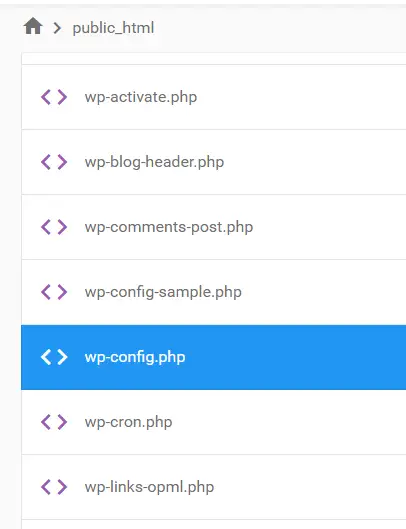
Open your website through your hosting File Manager or FTP.
Step 2
Locate this file.
wp-config.phpStep 3
Find this line near the bottom.
/* That's all, stop editing! Happy publishing. */Step 4
Add this code just above that line.
define('WP_MEMORY_LIMIT', '256M');If your website uses WooCommerce or many plugins, you can increase it further.
define('WP_MEMORY_LIMIT', '512M');For the WordPress admin dashboard, you can also add:
define('WP_MAX_MEMORY_LIMIT', '512M');Save the file.
Now refresh your website.
In many cases, this immediately fixes the PHP memory exhausted error.
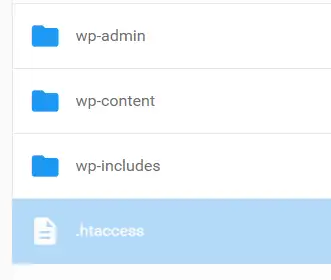
Method 2. Increase PHP Memory Using .htaccess
If the first method doesn’t work, try editing your .htaccess file.
This method only works on Apache servers.
Open:
.htaccessAdd this line before:
# END WordPressphp_value memory_limit 256MSave the file.
Reload your website.
If nothing changes, your hosting provider probably ignores this setting.
Don’t worry.
The next method works for most shared hosting providers.
Method 3. Increase PHP Memory Using php.ini or .user.ini
If changing wp-config.php didn’t increase the PHP memory limit, your hosting provider may be controlling it at the server level.
In that case, update your php.ini file.
Open the file and find this line:
memory_limit = 128MReplace it with:
memory_limit = 256MIf your website needs more memory, use:
memory_limit = 512MSave the file.
Some hosting providers take a few minutes to apply the new settings, so don’t worry if the change isn’t visible immediately.
Can’t Find php.ini?
Many shared hosting providers don’t give direct access to php.ini.
In that case, create a new file named:
.user.iniAdd this line inside it.
memory_limit = 256MSave the file and wait a few minutes.
This method works on many shared hosting plans.
For Hostinger users: PHP.ini File Location Explained
Method 4. Increase PHP Memory from cPanel
Many hosting companies make this even easier.
You don’t need to edit any files.
Simply log in to your hosting account.
Open cPanel and look for one of these options.
- Select PHP Version
- PHP Options
- MultiPHP INI Editor
- PHP Configuration
The name depends on your hosting provider.
Find memory_limit.
Change the value to:
256Mor
512MClick Save.
Now go back to WordPress and check Tools → Site Health → Server to confirm the new memory limit.
If the value has changed, you’re done.
Which PHP Memory Limit Should You Use?
A bigger number isn’t always better.
Use only as much memory as your website actually needs.
| Website | Recommended Memory Limit |
|---|---|
| Personal blog | 128M |
| Business website | 256M |
| Blog with many plugins | 256M |
| Elementor website | 256M to 512M |
| WooCommerce store | 512M |
| Multisite network | 512M to 1GB |
For most WordPress websites, 256M is the sweet spot.
Only increase it further if your website genuinely needs more resources.
Setting it to 2GB won’t make your website faster.
It only hides the real problem for a while.
Why Increasing PHP Memory Doesn’t Work
Sometimes you increase the PHP memory limit, but the error still appears.
That usually means something else is wrong.
Here are the most common reasons.
1. Your Hosting Provider Has a Hard Limit
Some shared hosting companies don’t allow more than 128M or 256M.
Even if you set 512M inside WordPress, the server ignores it.
Contact your hosting provider and ask them to increase the PHP memory limit.
2. A Plugin Is Using Too Much Memory
This is one of the biggest causes of memory exhausted errors.
A poorly coded plugin can keep consuming memory until PHP crashes.
Deactivate all plugins.
Enable them one by one.
Refresh your website after each activation.
When the error comes back, you’ve found the plugin causing the problem.
Update it, replace it, or contact the developer.
3. Your Theme Is the Problem
Heavy themes sometimes load unnecessary scripts and functions.
Switch to a default WordPress theme like Twenty Twenty-Six.
If the error disappears, your theme is likely responsible.
4. PHP Version Is Outdated
Older PHP versions are slower and use memory less efficiently.
Upgrade to the latest supported PHP version available in your hosting panel.
Besides improving performance, newer PHP versions also receive important security updates.
Common Mistakes to Avoid
Many beginners make these mistakes while trying to increase PHP memory.
Avoid them.
Increasing the Limit Without Finding the Cause
More memory is not always the answer.
If a plugin has a memory leak, it will eventually crash no matter how high you set the limit.
Editing the Wrong File
Apache uses .htaccess.
Nginx does not.
Know which server your hosting uses before making changes.
Forgetting to Back Up Your Website
Always create a backup before editing WordPress files.
One small typo inside wp-config.php can bring down your website.
Assuming 2048M Is Better
A huge memory limit won’t speed up your website.
It only delays the crash if another issue exists.
Choose a practical limit instead.
FAQs
What is the best PHP memory limit for WordPress?
For most WordPress websites, 256M is the ideal choice. If you use WooCommerce, Elementor, or many plugins, 512M is usually recommended.
Is increasing PHP memory safe?
Yes. Increasing PHP memory is safe because you’re only allowing WordPress to use more server memory when needed. It doesn’t affect your website’s content or database.
Will increasing PHP memory make my website faster?
Not always. A higher PHP memory limit won’t speed up your website, but it can prevent crashes and improve stability if your site is running out of memory.
Why am I still seeing the memory exhausted error?
If the error continues after increasing PHP memory, your hosting may have a server limit, or a plugin, theme, or outdated PHP version could be causing the problem.
Can shared hosting limit PHP memory?
Yes. Many shared hosting providers set their own maximum PHP memory limit, so your changes may not work until the hosting provider increases the limit.
Which is better, 256M or 512M?
256M is enough for most blogs and business websites, while 512M is a better choice for WooCommerce, Elementor, membership sites, and other resource-heavy websites.
How can I check if the new memory limit is working?
Go to Tools → Site Health → Info → Server in your WordPress dashboard and check the PHP Memory Limit value to confirm the new setting.
Should I increase PHP memory or upgrade my hosting?
Increase the PHP memory limit first. If your website still runs out of memory after moving to 256M or 512M, upgrading your hosting is the better long-term solution.
Final Thoughts
Seeing a PHP memory exhausted error can feel alarming, but in most cases, it’s one of the easiest WordPress problems to fix.
Start by checking your current PHP memory limit through Site Health. If it’s too low, increase it using wp-config.php, .htaccess, php.ini, or your hosting control panel. For most websites, 256M is enough, while larger WooCommerce or membership sites often perform better with 512M.
If increasing the PHP memory limit doesn’t solve the problem, don’t keep raising the number. That’s usually a sign that a plugin, theme, or your hosting environment is causing the issue. Finding the real cause will save you time and prevent future crashes.
The goal isn’t to give WordPress unlimited memory. The goal is to give it enough memory to run smoothly while keeping your website stable, secure, and fast.
A few minutes spent increasing the PHP memory limit today can prevent hours of troubleshooting later.