Key Takeaways
- Subscribers can log in and update their own profile. That’s it. They can’t write posts, edit pages, change settings, or touch anything in your admin area.
- WordPress has 5 default user roles: Administrator, Editor, Author, Contributor, and Subscriber. Subscriber sits at the bottom with the fewest permissions.
- The Subscriber role is most useful for membership sites, course platforms, and any site where users need an account but not editorial access.
- A WordPress Subscriber is not the same as an email subscriber. One has a site login. The other gets your newsletter. These are two completely different things.
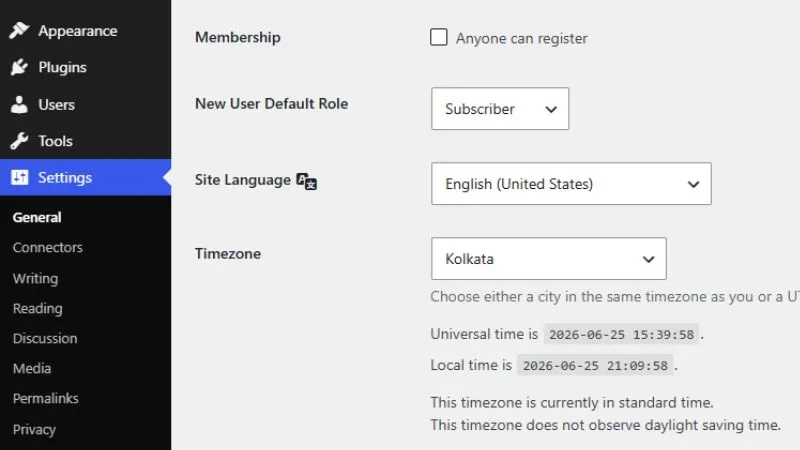
- Open registration is off by default in WordPress. You have to manually enable it at Settings > General, and always keep the default role set to Subscriber.
- Subscribers are safe. They have only one capability: “read.” They can’t hack your site, delete your content, or break anything.
- If you’re getting hundreds of unknown Subscribers, spambots are registering on your site. Add a CAPTCHA or turn off open registration.
You just set up WordPress. Someone asks you: “Can I create an account on your site?”
You say yes. You go to Settings > General, check “Anyone can register,” and hit save.
But then you panic. What can they actually do once they log in? Can they delete my posts? Change my theme? Mess up my site?
This is exactly where WordPress user roles matter. And the Subscriber role is the one you’ll use most often for regular visitors.
Let me break it down completely.
What Is a Subscriber in WordPress?
A Subscriber is someone who has a registered account on your WordPress site but has almost no permissions inside your admin area.
They can log in. They can update their own profile. That’s basically it.
They can’t write posts, edit pages, approve comments, install plugins, or touch anything that affects your site’s content or settings. WordPress locks them out of all of that automatically.
Think of it this way: a Subscriber gets a key to the front door but no access to any of the rooms inside.
The 5 WordPress User Roles (Quick Overview)
WordPress has five default user roles. Understanding where Subscriber sits helps you see why it exists. If you’re new to WordPress roles, the official WordPress documentation explains how each role and capability works in detail.
Administrator can do everything. Full access to every setting, plugin, theme, and user on the site. Only give this to yourself (or someone you fully trust).
Editor can create, edit, publish, and delete any post or page, including content written by others.
Author can write and publish their own posts but can’t touch anyone else’s content.
Contributor can write posts but can’t publish them. Someone else (Editor or Admin) has to approve and hit publish.
Subscriber can only log in and manage their own profile. Nothing else.
So if a Subscriber somehow sneaks into your admin panel URL, they’ll see almost nothing. WordPress won’t show them the post editor, the settings menu, or the comments section.
What Can a Subscriber Actually Do?
Here’s the complete list of what a Subscriber can do on your WordPress site:
- Log in with a username and password
- View their profile (display name, email, bio, etc.)
- Change their own password
- Update their own profile photo (if your theme supports it)
That’s the full list. Short, right?
Everything else, from writing posts to reading private content in the dashboard, is off limits unless you specifically set it up with a plugin.
Why Would You Even Need Subscribers?
Great question. On a basic blog, you don’t. If your site is just you publishing articles and people reading them, the Subscriber role does nothing useful.
But there are real situations where it matters a lot.
Membership sites. You’re selling premium content, courses, or a private community. Users pay, create an account, and log in to access the locked content. Their role is Subscriber. They don’t need to write anything. They just need to see what they paid for.
WooCommerce stores. When someone creates an account to track their orders, WordPress assigns them the Customer role (which WooCommerce adds). But in a basic setup without WooCommerce, Subscriber is the closest equivalent for account-only users.
Private or restricted sites. You’re building a site for a school, a company intranet, or a private community. Only registered users can see the content. Everyone who registers gets the Subscriber role, and a plugin controls what they can view after login.
Comment-only communities. Some sites require users to register before commenting. Subscribers can read and comment without having any editing power.
How to Enable User Registration in WordPress
By default, WordPress doesn’t let anyone register on your site. You have to turn it on manually.
Go to Settings > General in your WordPress dashboard.
Scroll down to the Membership section. Check the box that says “Anyone can register.”
Right below that, you’ll see New User Default Role. Make sure it’s set to Subscriber. This is critical. If you accidentally set it to Author or Editor, every new person who registers will have way more access than they should.
Click Save Changes.
How to See Who Has Registered as a Subscriber
Once people start signing up, you can view them all in one place.
Go to Users > All Users in your dashboard.
At the top of the list, you’ll see filter links: All, Administrator, Editor, Author, Contributor, Subscriber. Click Subscriber and you’ll see everyone with that role.
From here you can also change a user’s role if you need to. Select the user, go to their profile, scroll down to the Role field, and pick a different one.
One Big Mistake to Avoid
Many beginners confuse the WordPress Subscriber role with email subscribers.
These are two completely different things.
An email subscriber is someone who gave you their email address to receive your newsletter. They don’t have a WordPress account. They don’t log in anywhere. You manage them through tools like Mailchimp, ConvertKit, or your email marketing plugin.
A WordPress Subscriber is a registered user on your site with login credentials.
If you enable user registration and someone creates an account, they don’t automatically receive your blog posts by email. That doesn’t happen unless you build a separate email signup flow.
Keep these two concepts separate in your head. Mixing them up causes real confusion later.
Should You Enable User Registration?
Only if you actually need it.
Most simple blogs don’t need registered users at all. Readers visit, read, and leave. Turning on registration creates accounts to manage, login pages to maintain, and potential security considerations to think about.
If you’re running a membership site, a course platform, or a community, then yes, it makes total sense. The Subscriber role was built exactly for those situations.
If you’re just blogging, skip it for now. You can always turn it on later when you actually have a reason.
FAQs
Can a Subscriber see my posts and pages?
Yes, but only the ones that are publicly visible. A Subscriber can read anything on your site that a regular visitor can see. They don’t get any extra access to your content just because they’re logged in. If you want them to see exclusive or locked content, you’ll need a membership plugin to set that up separately.
Can Subscribers access the WordPress dashboard?
Technically yes, but there’s almost nothing there for them. When a Subscriber logs in and goes to /wp-admin/, they’ll see a stripped-down dashboard with only their profile settings. No posts menu, no pages, no settings, no comments. Some plugins let you redirect Subscribers away from the dashboard entirely so they land on your homepage or a custom page after login.
Can a Subscriber leave comments on my site?
That depends on your comment settings, not their role. If your site allows comments from anyone, they can comment. If you’ve set it to require login first, then yes, being logged in as a Subscriber lets them comment. The Subscriber role itself doesn’t control commenting. Your Settings > Discussion controls that.
What’s the difference between Subscriber and Contributor?
This is one of the most searched comparisons. A Contributor can write and save draft posts, but can’t publish them. A Subscriber can’t write posts at all. If someone wants to submit guest articles to your site, give them Contributor, not Subscriber. If they just need an account to access content or comment, Subscriber is the right choice.
Can I give a Subscriber more permissions without changing their role?
Yes. You can use a plugin like User Role Editor to add specific capabilities to the Subscriber role. For example, you could let Subscribers upload files or view certain restricted pages without promoting them to Contributor or Author. This is useful for membership sites with custom access rules. That said, for most beginners, it’s simpler to just use a membership plugin that handles permissions automatically.
Why do I have hundreds of Subscribers I never added?
This catches a lot of site owners off guard. If you have “Anyone can register” turned on in Settings > General, anyone can create an account on your site. Spambots do this constantly. Check your user list and delete accounts you don’t recognize. Then either turn off open registration or add a CAPTCHA to your registration form to stop the bots.
Can I delete a Subscriber?
Yes. Go to Users > All Users, filter by Subscriber, check the ones you want to remove, and select “Delete” from the bulk actions dropdown. WordPress will ask if you want to delete their content too (Subscribers usually have none) and then remove the account. You can also delete them one at a time from their profile page.
How do I change a Subscriber to a different role?
Go to Users > All Users and click on the user’s name. On their profile page, scroll down to the Role dropdown. Change it to whatever you need (Author, Editor, etc.) and click Update User. The change takes effect immediately. The next time they log in, they’ll see the permissions of their new role.
Is the Subscriber role secure? Can they hack my site?
A Subscriber has only one capability in WordPress: “read.” That means they can see public content and manage their own profile. They can’t edit files, install plugins, change settings, or touch anyone else’s content. From a security standpoint, the Subscriber role is the safest role you can assign to an outside user. The only real risk is if someone registers with a fake email and floods your user list, which is a spam issue, not a security breach.
Does a WordPress Subscriber automatically get my new blog posts by email?
No. This confuses a lot of beginners. A WordPress Subscriber is just a registered user with login access. They don’t receive email notifications unless you build that separately with an email marketing tool like Mailchimp or a plugin like MailPoet. Registering on your site and subscribing to your newsletter are two separate actions.
Wrapping Up
The Subscriber role is WordPress’s most restricted user role. It gives people a login but almost no admin access. It’s the right default for membership sites, course platforms, and any site where users need accounts without editorial permissions.
The key things to remember:
- Subscribers can log in and edit their own profile, nothing else
- Always set the default user role to Subscriber before opening registration
- A WordPress Subscriber is not the same as an email subscriber
- You don’t need this feature unless your site actually requires user accounts
Once you understand user roles, managing your site becomes a lot less stressful. You stop worrying about who has access to what because WordPress handles it for you automatically.