Key Takeaways
- Keywords Everywhere is a browser extension that shows search volume, CPC, and competition score directly under the Google search bar. No separate dashboard, no copy-paste.
- Google Keyword Planner hides exact numbers until you run ads. Keywords Everywhere shows those numbers without any ad spend.
- The free version covers 18 features: SEO difficulty, Moz link metrics, on-page analysis, and 200+ AI prompt templates. None of these cost credits. You only need to pay when you want the exact search volume.
- Watch the credit drain: the Related Keywords and People Also Search For widgets auto-run on every search and pull 20-30 credits at once. Turn off the widgets you do not use.
- This tool does not track rankings. It shows current keyword demand and competitor data. For position tracking over time, you need a separate tool.
You can guess at keyword demand. Or you can just look at the number. That’s the whole idea behind Keywords Everywhere. This browser extension drops search volume, CPC, and competition data right under your Google search bar.
Most keyword tools pull you into a separate dashboard. You copy a list, paste it somewhere else, then wait for a report. Keywords Everywhere skips all of that. It works inside Google, YouTube, Amazon, and a dozen other sites you already use.
Google Keyword Planner doesn’t help much either, unless you’re running active ad campaigns. Without ad spend, it hides real numbers inside vague ranges like 1,000 to 10,000. So you end up guessing anyway.
This guide breaks down what Keywords Everywhere shows you. You’ll see how the free version differs from the paid plans. And you’ll see where it fits next to bigger tools like Ahrefs or SEMrush.
What is Keywords Everywhere?
Keywords Everywhere is a freemium browser extension for Chrome, Firefox, and Edge. It comes from Axeman Technology Solutions, a small team based in Mumbai. More than 1.6 million marketers have installed it. It holds a 4.5-star rating across 5,700-plus reviews on the Chrome Web Store.
Brands like wikiHow, Adobe, and the American Red Cross use it on their marketing teams. That’s a wide range, from nonprofits to software companies.
Here’s a fun bit of proof that the tool works as advertised. The company’s own domain ranks for more than 14,500 organic keywords in the US alone. Its top keyword, the exact term “keywords everywhere,” pulls around 3,600 monthly searches. It sits at position one. When a keyword tool ranks for its own name, that’s a good sign.
The free version covers 18 features. That includes traffic estimates, Moz link metrics, SEO difficulty scores, and 200-plus AI prompt templates. None of those uses credits. The paid version adds 10 more, mostly for exact search volume, CPC, and competition data across 15-plus sites.
If you’d rather skip the install, the company also runs free web tools with no signup. These include a Search Volume Checker, a Keyword Tool, a Domain Authority Checker, and a SERP Checker.
How Keywords Everywhere works: set up in three steps
Setup takes a few minutes. After that, the data shows up on its own every time you search.
First, install the extension. Add Keywords Everywhere to Chrome, Firefox, or Edge from the official store. It’s free, and there’s nothing to configure yet.
Next, grab your free API key. Sign up with your email, and the company sends you a key. Paste it into the extension’s settings page. Most of the free features switch on right away. A few features, like the prompt templates and social widgets, work before you even add a key.
Then add credits if you want the paid data. Click the “K” icon in your toolbar, then “Purchase Subscription,” to add a plan. Pick one, and credits land in your account within about 30 minutes.
From there, just search like you normally would. The data appears on its own.
Everything You Get Inside the Keywords Everywhere Extension
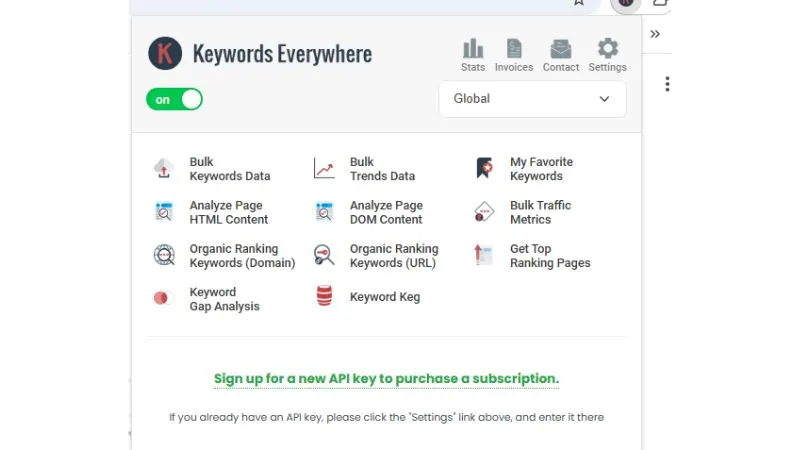
Keywords Everywhere packs 17 features into one lightweight browser extension. Here’s exactly what you’re working with.
The main dashboard gives you 11 core research tools:
- Bulk Keywords Data uploads thousands of keywords at once and returns volume, CPC, and competition data in seconds.
- Bulk Trends Data shows search trend patterns for multiple keywords simultaneously, powered by Google Trends.
- My Favorite Keywords lets you save and organize keywords you want to track or revisit later.
- Analyze Page HTML Content scans any webpage’s raw HTML for on-page SEO signals, keyword usage, and heading structure.
- Analyze Page DOM Content analyzes the live rendered version of a page and catches dynamic content that HTML scanning misses.
- Bulk Traffic Metrics pulls traffic estimates for multiple URLs or domains in one go.
- Organic Ranking Keywords (Domain) shows every keyword a full domain ranks for organically.
- Organic Ranking Keywords (URL) does the same thing, but is drilled down to a single page level.
- Get Top Ranking Pages finds which pages on any domain are pulling the most organic traffic.
- Keyword Gap Analysis spots keywords your competitors rank for, but you don’t.
- Keyword Keg generates long-tail keyword suggestions from a single seed keyword.
The top navigation adds 4 utility options:
- Stats tracks your API credit usage and remaining balance.
- Invoices gives you access to billing history and downloadable receipts.
- Contact connects you directly to the Keywords Everywhere support team.
- Settings is where you enter your API key and configure extension preferences.
Two global controls round out the full feature set:
- On/Off Toggle lets you enable or disable the extension instantly without uninstalling it.
- Country Selector (Global dropdown) switches between countries for region-specific keyword data, critical if you’re targeting India, the US, or the UK audiences separately.
That’s 17 features in one free-to-install extension. You only pay for the API credits you actually use.
Keyword research and search volume analysis with Keywords Everywhere
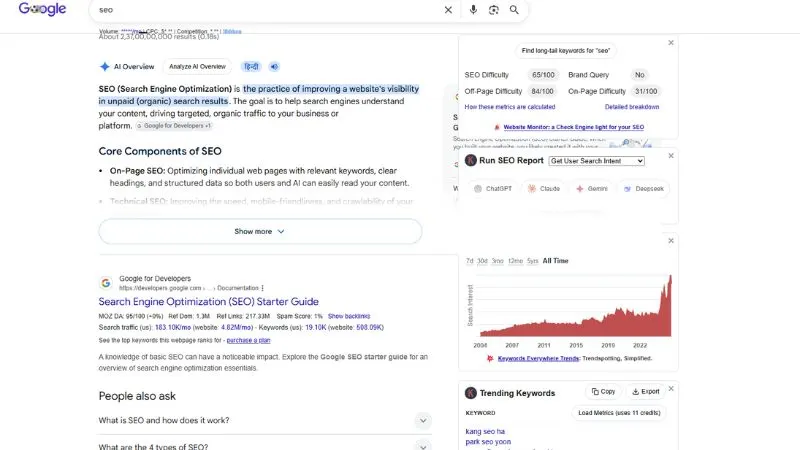
This is where the name makes sense. Type a keyword into Google, and the volume, CPC, and competition score appear right under the search box.
Search for “search volume,” for example, and you’ll see something close to 3,600 monthly searches. You’ll also see a $1.97 cost per click and a competition score of 0.07. There’s no spreadsheet to open and no separate tab to manage.
That number comes from Google Keyword Planner, the same source advertisers use to plan campaigns. The difference is access. Google Keyword Planner hides the exact figure inside a range unless you’re spending on ads right now. Keywords Everywhere shows the precise number for free. And it shows that number everywhere you search, not just inside one Google Ads dashboard.
This changes how you plan content. Instead of writing a post and hoping it ranks, you check demand first. Then you decide if the topic is worth your time.
Keyword metrics and SERP analysis that matter
Search volume alone won’t tell you if a keyword is winnable. Keywords Everywhere adds a few more layers next to your results.
SEO difficulty, on-page, and off-page scores
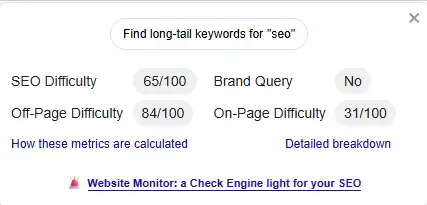
Every search shows an SEO Difficulty score from 0 to 100. A search for “Mailchimp,” for instance, might return a 96 out of 100. That breaks down into a 69 Off-Page Difficulty and a perfect 100 On-Page Difficulty. It also flags a Brand Query as yes.
That breakdown matters because it tells you why a keyword is hard. A high off-page score means you’d need serious backlinks to compete. A high on-page score means the top results are already well optimized. Brand queries are nearly impossible to outrank. After all, people are searching for that company by name.
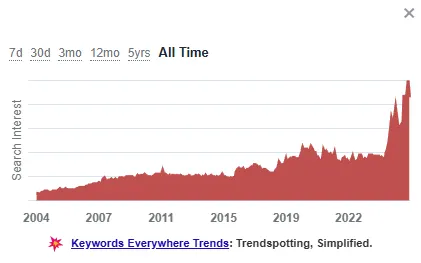
Trend charts going back to 2004
A chart next to your search results shows the monthly volume history. It often stretches back to 2004 for Google and YouTube. That’s longer than Google Trends gives you. And it comes with real numbers instead of an index from 0 to 100.
This helps you spot seasonality before you commit to a topic. A keyword that spikes every December isn’t a steady traffic source. It’s a holiday bump, nothing more.
Moz link metrics under every result
Below each search result, you’ll see Domain Authority, a three-year DA trend, spam score, referring domains, and total backlinks. All of that comes from Moz. A “Show Backlinks” link opens the actual backlink list for that page.
This turns a normal Google search into a quick competitor audit. You can scan the whole first page and see which results you can realistically outrank.
Related keywords and long-tail opportunities
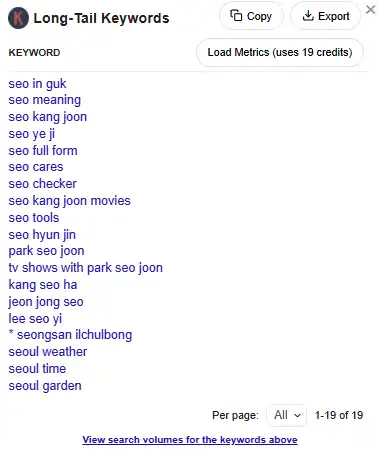
Three widgets sit on the right side of your Google results. They’re called Related Keywords, People Also Search For, and Long-Tail Keywords. The long-tail list pulls straight from Google’s autocomplete.
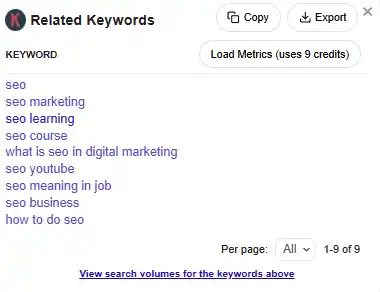
Search “keyword everywhere,” and the Related widget might surface terms like “Google Trends” at 368,000 monthly searches. Or it might show “keyword explorer” at a smaller volume, with its own CPC and competition numbers attached. The People Also Search For widget tends to surface direct competitors. Think “sem rush” or “ahrefs,” each with its own volume and CPC data next to the name.
Here’s the part most people miss. Every keyword shown in these widgets costs one credit, the same as a manual search. Say a search returns 8 related keywords and 20 People Also Search For results. That’s 1 plus 8 plus 20, or 29 credits, for one search. Run ten searches like that, and you’ve spent close to 300 credits without typing into the bulk tool once.
That’s not a reason to avoid the widgets. It’s a reason to turn off the ones you don’t use. Do that in the settings page, so you only pay for the ideas you need.
Competitor research and search insights
Want to know what’s working for someone else’s site? With a paid plan, every search result shows estimated traffic and a keyword count for that URL. That count can run up to the top 10,000 keywords per page.
Run a Competitor Gap Analysis next to your own domain, say example.com. You’ll get a list of every keyword your rivals rank for that you don’t. Each one comes with its volume and the competitor’s current position. That’s a direct list of content gaps you can act on right away.
Pair that with the Moz link metrics from the section above. Now you can see which competitors win because of better content. And which ones win mostly on years of backlinks you can’t easily replicate.
Keywords Everywhere does this kind of research on itself, too. Its own ranking keywords include terms like “domain authority checker,” “answer the public alternative,” and “SEO minion.” That’s a useful pattern if you’re building topical authority around your own tool or service.
Keyword lists, saved data, and workflow management
Keyword research falls apart fast without a system for storing what you find. Keywords Everywhere has a few tools built for exactly that.
The Bulk Keywords Data tool lets you paste or import a list. You can run thousands of keywords at once and get volume, CPC, and competition in one pass. Export the results to CSV, Excel, or PDF when you’re done.
My Favorite Keywords lets you save individual terms to revisit later. Every time you open that page, it pulls fresh data. But it only charges a quarter of the normal credit cost per keyword. That’s a built-in discount for tracking the terms that matter most to you.
If you want historical data for a whole batch of terms, Bulk Trends Data works the same way. It just covers trend charts instead of single numbers.
For credit control, the settings page lets you toggle any widget on or off. You can also set metrics to load only when you click, instead of loading automatically on every search. And if you’re just browsing with no research planned, click the “K” icon and switch the extension off. That stops the extension from making API calls or spending credits while you browse.
Using Keywords Everywhere for SEO and content marketing
Keyword data only matters once it turns into content that ranks. This is where Keywords Everywhere leans hard into AI tools.
The AI SEO Report runs a full analysis on any search query. It uses ChatGPT, Claude, or Gemini, depending on which one you pick. You get search intent, a suggested content type, keyword clusters, title ideas, and a rankability check. All of that comes from one click next to your search results.
On-Page Analysis works the other direction. Point it at any URL, yours or a competitor’s. It returns every keyword found in that page’s content, along with keyword density. That’s a fast way to check whether your own post really targets the terms you meant to target.
If you connect Google Search Console, the extension adds volume, CPC, and competition columns straight into your Queries report. It also offers a Visualize view that turns the whole report into a chart with one click.
Keywords Everywhere also offers more than 200 free prompt templates for ChatGPT, Claude, and Gemini. They cover things like content title generation, outline building, and monthly content calendars. If you already group titles by angle, say Authority, Curiosity, Outcome, and Process, this template speeds up that step.
For anyone tracking how AI search pulls answers, ChatGPT Fanout Queries shows the hidden sub-questions ChatGPT runs first. That’s useful if you’re trying to cover every angle an AI Overview might search before quoting a source.
YouTube keyword research and search trends
YouTube doesn’t publish its own search volume. So Keywords Everywhere shows you the closest available number, Google’s volume for that same term. Every tool that shows YouTube volume does this same workaround. Google is the only platform that releases official numbers, paid tools included.
Search inside YouTube with the extension on, and you’ll see that volume next to your query. You’ll also get a tag generator and a YouTube Insights breakdown of the videos already ranking. That breakdown covers things like video length patterns and which tags the top videos use.
For channel strategy, this turns a normal YouTube search into a quick content gap check. You can see what already ranks, how long those videos run, and what’s missing. Then you script your own video around the gap.
Exporting keyword data and SEO workflows
Finding the data is only half the job. Getting it out of the extension matters just as much.
Every keyword table includes Copy, Excel, CSV, PDF, and Print buttons. Moving a list into a spreadsheet or report takes one click.
For bigger workflows, Keywords Everywhere also runs a public REST API. You can pull data straight into your own app using the same free API key.
There’s also an MCP server you can connect to Claude, ChatGPT, Cursor, or VS Code. That lets your AI assistant pull live keyword data mid-conversation. You don’t have to write connector code yourself. If you’ve ever wired Zapier or Buffer into a workflow to cut manual steps, this is the same idea. It just applies that idea to keyword research instead of social posting.
Google’s AI Overviews show up on more searches every month. The AI Overview Metrics feature breaks down which of your searches now trigger one. It also shows the sources Google cited to build that answer. That’s a direct way to check whether your own content has a shot at getting quoted.
Keywords Everywhere pricing: free vs. paid plans
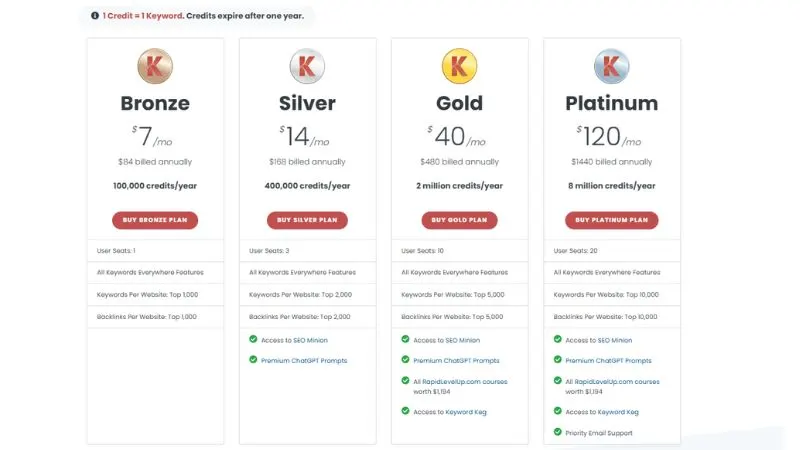
The credit system is simple once you see it. One credit buys the volume, CPC, competition, and 12-month trend data for one keyword. Credits expire one year after purchase. The system spends older credits before newer ones.
All four plans get billed annually, not monthly. The company has said that processing fees on a $7 charge would cost more than the plan.
| Plan | Price | Credits per year | User seats | Keywords/backlinks per site | Extras |
|---|---|---|---|---|---|
| Bronze | $7/mo, billed $84/year | 100,000 | 1 | Top 1,000 | Core features only |
| Silver | $14/mo, billed $168/year | 400,000 | 3 | Top 2,000 | SEO Minion, premium ChatGPT prompts |
| Gold | $40/mo, billed $480/year | 2,000,000 | 10 | Top 5,000 | Adds RapidLevelUp courses (worth $1,194) and Keyword Keg access |
| Platinum | $120/mo, billed $1,440/year | 8,000,000 | 20 | Top 10,000 | Adds priority email support |
If you upgrade mid-year, the old plan’s credits carry over instead of disappearing. You can cancel anytime from the subscription page. And if you forget to cancel before a renewal, just email within a week for a refund.
Mistakes to avoid with Keywords Everywhere
A few habits waste credits or cause confusion. These come straight from the company’s own support questions.
- Skipping the free API key. Plenty of the free 18 features still need that key. That includes SEO metrics, on-page analysis, and the keyword widgets. People assume everything needs payment, so they skip signing up and miss most of the tool.
- Leaving autocomplete metrics on by default. Every keyword shown in a Google or YouTube autocomplete dropdown also uses a credit. Turn off “Show Metrics in Autocomplete Suggestion Drop Downs” in settings if you don’t need that.
- Treating it like a rank tracker. It isn’t one. Keywords Everywhere shows current data and which terms a site ranks for right now. It doesn’t track your position over time. For daily rank tracking, the same company runs a separate free tool called Website Ranking Checker.
- Forgetting to toggle the extension off. If you’re browsing without doing research, flip the extension to “off” from the pop-up menu. Otherwise, it keeps pulling data and spending credits in the background.
- Underestimating big reports. Running a Search Console report with 500 keywords on the page uses 500 credits in one pull. Know that going in, so one report doesn’t drain your whole monthly allowance.
FAQs
Is Keywords Everywhere free?
The extension installs for free. 18 features work without paying anything, including SEO difficulty scores, Moz link metrics, on-page analysis, and 200+ AI prompt templates. You buy credits only when you want exact search volume, CPC, and competition data.
How does the credit system work?
One credit returns volume, CPC, competition score, and a 12-month trend for one keyword. Credits expire one year from purchase. The system burns older credits first. All plans are billed annually.
Which browsers support Keywords Everywhere?
Chrome, Firefox, and Edge.
Does Keywords Everywhere show YouTube search volume?
It shows Google’s volume for the same term. YouTube does not release its own search data. Every tool on the market does this same workaround.
Can I track my rankings with Keywords Everywhere?
No. It shows which keywords a domain or URL ranks for right now. It does not track position changes over time. The same company runs a separate free tool called Website Ranking Checker for that.
Why did one search spend 30 credits instead of one?
The Related Keywords and People Also Search For widgets each charge one credit per keyword they display. Eight related keywords plus 20 People Also Search For results add up to 29 credits on a single search. Turn off the widgets you do not use from the settings page.
What happens to my credits if I upgrade mid-year?
They carry over. You do not lose unused credits when you switch to a higher plan.
Does it work with Google Search Console?
Yes. Connect Search Console, and it adds volume, CPC, and competition columns directly into your Queries report.
Is there an API?
Yes. Keywords Everywhere runs a public REST API. You can pull data into your own app using the same free API key from your account.
Conclusion
Keywords Everywhere earns its name. It puts search volume, CPC, competition, and several other metrics directly into the sites you already use. You don’t get sent to another tab to find any of it.
The free tier alone covers more ground than most marketers realize. And the paid credits stay cheap once you turn off the widgets you don’t need. Between the extension, the REST API, and the new MCP server, it fits almost any research routine.
Installing it costs nothing. So what’s the first keyword you’re going to check?