Key Takeaways
- A 4-second load time is already costing you, visitors. Most people won’t wait that long.
- Slow sites push people away fast. Going from 2 seconds to 5 seconds can quadruple your bounce rate.
- Hosting is often the biggest bottleneck. A slow server can undo everything else you optimize.
- Images are usually the easiest speed win. Compressing them can dramatically reduce page size.
- Google looks at your mobile experience first. A slow phone experience can hurt rankings, even if desktop scores look fine.
WordPress speed optimization isn’t about getting a green score in PageSpeed. It’s about keeping people on your site.
A page that takes 4 seconds to load is already losing visitors. Even a tiny delay can hurt conversions.
I’ve been fixing slow WordPress sites for years, and the same culprits show up every time. Bad hosting, weak caching, oversized images, and too many plugins.
This guide shows you where the bottlenecks are and how to fix them. Most changes take just a few minutes, but the difference can be huge.
Let’s fix your site.
Why WordPress Speed Optimization Matters
WordPress runs a huge part of the internet. Over 800 million websites use it. That’s more than 40% of every website online.
But here’s the problem. The same themes and plugins that make WordPress easy to use are also what slow it down. More features usually mean more code running quietly in the background.
A slow website hurts you in three ways.
Lower rankings. Google made page speed a ranking factor for mobile search back in 2018.
Higher bounce rate. When load time goes from 2 seconds to 5 seconds, bounce rate jumps from 9% to 38%.
Fewer conversions. Every extra second of waiting chips away at your sales or leads.
About 15% of internet users only use mobile. They never touch a desktop. If your mobile site loads slow, you are losing real visitors before they even see your content.
What Actually Slows Down a WordPress Website
Before fixing anything, you need to know what’s actually wrong. It’s almost always one of these things.
Weak hosting. Shared hosting splits server power across hundreds of websites. Your server takes too long to respond. This shows up as high TTFB, which means Time to First Byte.
Heavy or badly coded plugins. Every plugin adds extra processing time and extra database work. This can hurt your page’s reaction speed when someone clicks something.
Unoptimized images. Usually, the single biggest reason a page feels slow. This directly hurts your LCP score, which measures how fast your biggest visible element loads.
Too many requests. Every separate CSS file, JS file, or font your browser has to fetch adds a delay before anything shows up on screen.
Bloated themes. Packed with features nobody actually uses, but the code still loads anyway.
No real caching. Without caching, WordPress rebuilds your entire page from scratch every single time someone visits.
Old PHP version. Newer PHP versions process server requests much faster than older ones.
Once you know which of these apply to your site, fixing it becomes simple.
How to Check Your WordPress Site Speed
You can’t fix what you haven’t measured first.
Best Free Tools to Use
Google PageSpeed Insights, best for checking your Core Web Vitals score.
GTmetrix, gives a clear visual breakdown of what’s slowing you down.
WebPageTest, shows every single file loading and lets you test from different locations and devices.
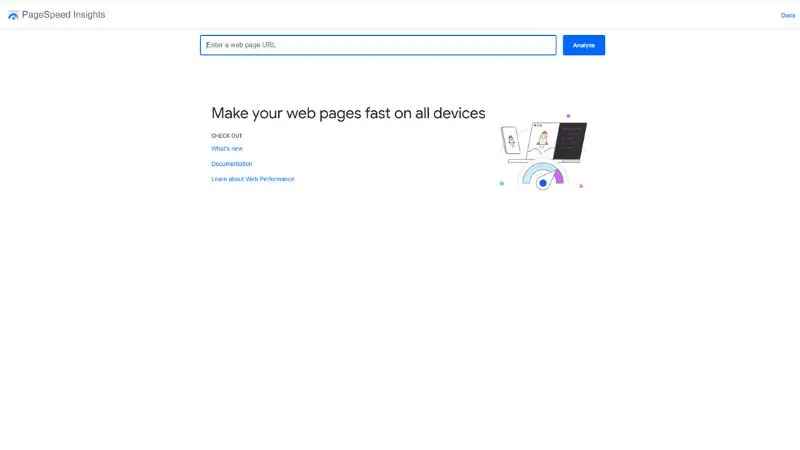
How to Test Properly, Step by Step
Pick one tool from the list above.
Paste in your homepage URL first, then test your most important pages too.
Run the test and wait for results.
Look at these key numbers:
- TTFB tells you how fast your server responds
- LCP tells you how fast your biggest element loads, aim for under 2.5 seconds
- CLS tells you how much your page jumps around while loading, keep this under 0.1
- INP tells you how fast your page reacts to clicks, stay under 200 milliseconds
Read the suggestions the tool gives you. They usually point straight to the problem, like unoptimized images or blocking scripts.
Test on both mobile and desktop. Mobile almost always scores lower, so don’t skip it.
Why Mobile Speed Matters Even More
Google looks at your mobile website first when deciding how to rank you, not your desktop version.
That means a slow mobile site hurts your rankings even if your desktop site loads fast.
Mobile users are also more impatient. They’re often on weaker internet connections, using less powerful phones, and they’ll leave fast if your page drags.
Quick Mobile Checks
- Test your mobile speed score separately from your desktop
- Make sure buttons and links have enough space between them so people don’t tap the wrong thing
- Check that nothing jumps around while the page is loading
If your mobile score is way behind your desktop score, fix that first.
Step 1: Get Hosting That Doesn’t Hold You Back
This is the step most people skip, and it’s the one that matters most.
You can install every speed plugin out there. None of it helps if your server takes 800 milliseconds just to say hello.

What Good Hosting Looks Like
- A fast server type, not basic old-style hosting
- Built-in caching at the server level
- Support for the newest PHP version
- A CDN is included or easy to connect
- Enough server power that you’re not sharing space with hundreds of other websites
If your TTFB is over 600 milliseconds in PageSpeed Insights, your hosting is your biggest problem. Fix this before anything else on this list.
Also, check: Need help choosing the right WordPress hosting?
Step 2: Set Up Caching the Right Way
Caching is the single biggest speed win you can get from one change.
Without it, WordPress runs all its code and database lookups from scratch every time someone visits a page. With caching, your server just hands over a ready-made copy. Much faster.
Two Types of Caching That Matter
Page caching saves a complete, ready-made version of your page so WordPress doesn’t have to rebuild it every time.
Object caching saves the results of repeated database lookups, so your site doesn’t ask the same question to the database again and again.
Most good caching plugins handle both of these for you in one setup.
Important Warning
Never run two caching plugins at the same time. They fight each other and can break your site instead of speeding it up. Pick one and stick with it.
Also, some hosting companies already include their own caching system built in. Always check with your host first, you might already have good caching running without needing a plugin at all.
How to Check If Caching Is Actually Working
Open your browser, right-click on your page, and choose Inspect. Go to the Network tab and reload the page. Click on your main page file and look for something called cache-control in the response headers. If you see it, caching is active.
Step 3: Compress and Resize Every Image
Images are almost always the heaviest part of any page. Fix this and you’ll see the biggest single jump in your score.
Do this in order:
Resize before uploading. Don’t upload a massive 4000 pixel wide photo and let WordPress shrink it for you. Resize it to the actual size it will display at.
Convert to WebP format. This format is 25 to 35% smaller than JPEG or PNG with no visible drop in quality.
Compress before upload. Use a free tool to compress your images. Aim for 80% quality on photos; you won’t notice the difference, but the file size drops a lot.
Add alt text to every image. This helps with accessibility and can help your images show up in image search, too.
Turn on lazy loading. This means images below the visible part of your page don’t load until someone actually scrolls down to them. WordPress has this built in already.
Consider an image sitemap. This helps search engines find and index your images properly, especially useful if images are a big part of your content.
Real example: I once took a blog post from 6.8 MB total page weight down to 980 KB just by resizing and converting images to WebP. The page’s biggest load time dropped from 4.1 seconds to 1.6 seconds. That’s it. No other changes needed.
Step 4: Clean Up Render Blocking CSS and JavaScript
Render-blocking files are scripts and stylesheets your browser has to download before it can show anything on the screen at all.
The more of these you stack up, the longer visitors stare at a blank white page.
Fix This Safely, in This Order
Minify your code first. This strips out extra spaces and comments from your files. Almost never breaks anything.
Combine files next, then test your site. This merges multiple CSS or JS files into fewer files. Always test after doing this, since it can sometimes cause small conflicts.
Defer anything that isn’t needed right away. This tells the browser to load it after the visible part of the page is already showing, not before.
Worth knowing, modern browsers can already load multiple files at once, so combining files matters a little less than it used to. Still worth testing, but don’t expect a massive change from this one step alone.
Step 5: Minify HTML, CSS, and JavaScript
Minifying strips out unnecessary characters from your code, things like extra spaces, line breaks, and comments, without changing how anything actually works.
It’s a small win by itself, but combined with caching and image compression, it adds up nicely.
Most good caching plugins already include minification built in. You usually don’t need a separate plugin just for this one task.
Step 6: Use a CDN
A CDN, short for Content Delivery Network, stores copies of your website on servers spread out around the world.
Without one, every single visitor’s request has to travel back to your one server, wherever that server happens to be. With a CDN, visitors get served from a server that’s physically closer to them.
Basic CDN Setup
- Connect your domain to a CDN service
- Turn on automatic file compression for HTML, CSS, and JS
- Enable the newer compression option if it’s available
- Set your caching level to standard or higher
Some hosting companies already include a CDN for you. Check before setting one up separately.
Step 7: Turn On Compression
This compresses your text files, things like HTML, CSS, and JS, before sending them to a visitor’s browser. Their browser then unpacks the files once they arrive.
This alone can shrink file sizes by 70% or more.
Most decent hosting companies turn this on automatically at the server level. If yours doesn’t, you can usually turn it on through your hosting control panel.
Step 8: Clean Your WordPress Database
Your database collects junk over time. Old saved drafts, spam comments, and leftover data from old plugins. All of it slows down every single thing your site does behind the scenes.
Here’s a real example of how much this adds up. If one blog post is 100 KB of data, and you have 5 saved revisions of that same post sitting in your database, that’s 500 KB of completely wasted space, just from one post.
Now imagine that across hundreds of posts.
Run This Cleanup Every Month
Limit how many revisions WordPress saves per post. Your developer can add a simple line of code to your site’s settings file to cap this number.
Delete spam and trashed comments.
Clear out expired temporary data.
Run a database optimization, which tidies up the leftover mess.
You don’t have to do this manually. There are free plugins built specifically to do this safely with one click.
Step 9: Remove Unused Plugins, Themes, and Media
Every inactive plugin and theme still takes up space and can be a security risk, even when it’s not actively running.
Do This Every Few Months
Deactivate, then fully delete, any plugin you haven’t used in the last 90 days.
Delete unused themes from your appearance settings.
Clean out your media library of images you no longer use anywhere on your site.
Ask one simple question for every single plugin. Does this really need to load on every page, or just on one specific page? A contact form plugin loading its code on every single page, even pages that have no form, is just dead weight slowing you down.
Step 10: Fix These Small WordPress Settings
These take two minutes each, but they genuinely add up.
Turn off pingbacks and trackbacks. Found in your discussion settings. These create extra database entries and are a common target for spam.
Manage the heartbeat feature. This is a WordPress feature that constantly checks in with your server for things like auto-saving drafts. Too frequent, and it adds a real load to your server. A simple plugin lets you slow this down or turn it off where it’s not needed.
Set your correct timezone. Found in your general settings. A wrong timezone can mess with scheduled posts and other time-based features.
Show summaries instead of full posts on your homepage and category pages. Found in your reading settings. This cuts down how much content loads at once.
Limit how many posts show on your homepage. Around 5 to 7 posts instead of 10 or more. Less to load means a faster first impression.
Break long comment sections into pages. Found in discussion settings. Stops hundreds of comments from all loading at once on popular posts. You can also use a tool that lazy loads comments and profile pictures so they only load once someone scrolls down to them. If comments aren’t important for your site, turning them off entirely is the simplest fix.
Avoid heavy sliders and carousels at the top of your page. These are often loaded with extra JavaScript and large images that badly hurt your LCP score. A simple, optimized header image usually performs much better.
Review your media settings. Found in your media settings. Make sure WordPress isn’t generating extra image sizes you never actually use anywhere.
Step 11: Run the Latest PHP Version
Old PHP versions are slower at handling every single request your site processes.
Check your current PHP version through your hosting control panel. Most decent hosts let you switch with a single click.
Aim for the newest stable version available. Always test your site right after switching, since some older plugins can occasionally have issues with newer PHP versions.
Step 12: Choose a Lightweight Theme
A theme packed with built-in sliders, animations, and page builder features sounds great until you realize all of that code loads on every single page, whether you actually use those features or not.
A simple, well-built theme with only the features you actually need will almost always perform faster than a theme that tries to do everything.
Step 13: Reduce Redirects
Every redirect, especially chains where one redirect leads straight into another, adds an extra round-trip between the browser and your server.
Check for old redirects you no longer need, and fix any redirect chains so links go straight to their final destination instead of bouncing through multiple steps.
Step 14: Keep Everything Updated
Updates aren’t just about security. They often include real speed improvements, too.
Smart Way to Handle Updates
Test bigger updates on a staging copy of your site first, if your hosting offers one. A staging site is basically a private practice copy where you can test changes safely before they go live.
Smaller WordPress updates are usually safe to apply automatically.
Always check your site after any update to confirm nothing broke and your speed didn’t drop.
If you manage multiple websites, command-line tools exist that let developers update everything in bulk instead of clicking through each site one by one.
Mistakes That Quietly Wreck Your Site Speed
Running two caching plugins at once. They conflict with each other. Pick one and stick with it.
Updating everything automatically without testing. An update can silently undo your speed work or break your page layout without you noticing right away.
Ignoring outside scripts and widgets. Things like analytics tools, chat widgets, and review plugins all add outside requests that your page has to wait on. Review these every few months and remove anything you’re not actually using anymore.
Changing ten settings all at once. Change one thing, test it, confirm it works, then move to the next change. Otherwise, you won’t know which change caused a problem if something does break.
Optimizing images after you’ve already published. It’s far easier to compress one image before you upload it than to go back and fix two hundred already-published posts later.
Build a Simple Performance Target
Set clear, simple goals before you start, and check against them after every big change you make.
- LCP under 2.5 seconds
- Total page size under 1.5 MB
- Fewer than 60 total file requests per page
- TTFB under 600 milliseconds
Test your site monthly, and again right after any major plugin, theme, or content change.
A Note for Bigger Content Sites
If your website has a huge amount of content and your built-in search feature feels slow, that’s a real and common problem. The default WordPress search relies on direct database lookups that don’t scale well once you have thousands of posts. There are dedicated search tools built specifically to fix this, worth looking into once your site grows large enough that search starts to feel sluggish.
WordPress Speed Optimization Checklist
- TTFB under 600 milliseconds, upgrade hosting if not
- One caching plugin is installed and configured correctly
- Images resized, compressed, and converted to WebP
- Lazy loading turned on
- CSS and JS minified, file combining tested carefully
- CDN connected
- Compression active
- Database cleaned, old revisions and spam removed
- Unused plugins, themes, and media deleted
- Pingbacks and trackbacks turned off
- Heartbeat feature managed
- Homepage shows summaries, limited post count
- Comments are paginated or lazy-loaded
- Latest PHP version running
- Lightweight theme in use
- Redirect chains fixed
- Everything is tested on mobile separately from desktop
Frequently Asked Questions
How do I speed up my WordPress site?
Start with hosting and caching, since those affect every single page on your site. Then compress your images, clean your database, and remove plugins you don’t actually use. Test your score after each change you make.
How do I optimize my WordPress site without any coding knowledge?
A good caching plugin, an image compression plugin, and a CDN service cover almost everything on this list without needing to touch a single line of code.
How do I improve my WordPress website speed for mobile users?
Check your mobile speed score on its own, separate from the desktop. Make sure your caching plugin has mobile caching turned on, and confirm nothing shifts around while your page is loading.
How fast should my WordPress site actually load?
Aim for under 3 seconds. Under 2 seconds is even better for keeping your bounce rate low.
How often should I test my WordPress site speed?
Once a month, and again right after any big plugin update, theme change, or new feature you add to your site.
Is upgrading to better hosting actually worth it for speed?
Yes, in most cases, this is the single biggest improvement you can make. A good host gives you reliable server power built specifically for WordPress, which fixes your TTFB before you even touch a plugin.
Conclusion
Most site owners run PageSpeed Insights once, make a few changes, and move on. That’s the wrong approach.
WordPress speed optimization isn’t something you do once and forget. Hosting gets outdated. Plugins add bloat. Images pile up. Your score from six months ago tells you nothing about where you stand today.
Run your homepage through PageSpeed Insights right now. Look at your TTFB, your LCP, and your Total Blocking Time. Those three numbers tell you exactly which step on this list to tackle first.
If your score is below 50, start with caching and hosting. That’s almost always the bottleneck.
If you’re between 50 and 75, fix your render-blocking scripts and compress your images. You’re close.
If you’re above 75, you’re in good shape. Focus on LCP and INP fixes to push toward that 90+ score.
The 14 steps in this guide cover every major area of WordPress performance. You don’t need to do all of them in one sitting. Pick the two or three that match your current score and start there.
Speed isn’t just a technical metric. It directly affects your bounce rate, your Core Web Vitals score, and how Google ranks your pages. A faster site converts better and ranks higher. That’s worth the effort.
What’s your current PageSpeed score? Drop it in the comments and I’ll tell you the first fix to make.