Key Takeaways
- WordPress Theme Detector tools let you find the theme a website is using in less than a minute. Just paste the site’s URL and scan it.
- Checking the page source or using browser DevTools can work, but they often fail on heavily customized WordPress sites.
- Many free theme detectors only identify the active theme and miss important details like the parent theme, child theme, and installed plugins.
- WP Theme Detector (wpthemedetector.com) stands out because it detects theme hierarchies, identifies many active plugins, and shows popularity data based on millions of scanned websites.
- Based on live detection data, Astra, Divi, Genesis, Hello Elementor, and Newspaper are among the most widely used WordPress themes today.
- Seeing a competitor’s theme and plugin stack can save hours of research and help you build a faster, better WordPress site.
You see a website. Clean layout, fast load, sharp typography. And your first thought is: what theme is that?
That’s exactly where a WordPress theme detector comes in. It can identify a site’s theme in seconds, without digging through code.
Every blogger, developer, and digital marketer has been there. The good news? Finding a WordPress theme is easier than most people think. The bad news? Most tools give you incomplete or just plain wrong results. Here’s exactly how to do it right.
Why You Need to Know What Theme a Site Is Using
It’s not just curiosity.
When you identify a competitor’s WordPress theme, you understand why their site performs the way it does. You see what page builder they use, what caching plugin keeps their load times low, and sometimes you can even figure out their entire tech stack from a single scan.
That’s competitive intelligence. And it costs you nothing.
Designers use it to pitch clients. Developers use it to benchmark builds. Bloggers use it to replicate setups that clearly work. There’s a reason “check WordPress theme” is one of the most searched queries in the WordPress space.
The Manual Pro Method: How to Find a Theme Without Any Tool
Before you touch any tool, know this trick. It works about 60% of the time and takes under 10 seconds.
Right-click anywhere on a WordPress site. Click “View Page Source.” A new tab opens with raw HTML code. Press Ctrl+F (or Cmd+F on Mac) and search for /wp-content/themes/.
What you’ll see is a file path that looks something like this:
/wp-content/themes/astra/style.css
That word after /themes/ is your theme name. In this case, Astra.
The style.css file is basically the theme’s ID card. WordPress requires every theme to include it, and it holds the theme’s name, author, version, and description at the top. Think of it like a label sewn inside a jacket.
Where this breaks down: If a developer has minified the assets (compressed and scrambled the code to speed things up), the path references disappear or get rewritten. Heavily customized sites strip these clues intentionally. That’s when you need an actual WordPress theme detector.
Why Most WordPress Theme Detector Tools Fail
There are dozens of free tools that claim to find any theme instantly. Most of them scan the surface level of a page, pull whatever theme name they find in the HTML header, and call it done.
That’s fine for simple sites. But it breaks completely in three common scenarios.
Child themes. A child theme inherits its look and structure from a parent theme but adds custom code on top. Think of a parent theme as the base recipe and a child theme as the customized version someone made for their restaurant. Most tools only see the child theme and have no idea what parent theme is powering the whole thing. You need both to understand the full picture.
Page builders. Sites built with Elementor or Divi often use a very thin theme (called a “starter theme” or “blank theme”) while the actual visual design lives inside the page builder. Basic scanners report the blank theme and miss the real tool doing the heavy lifting.
Minified and obfuscated code. Developers who care about performance compress every asset. When the file paths get minified, surface-level scanners return nothing useful.
WP Theme Detector: The Tool That Actually Gets It Right
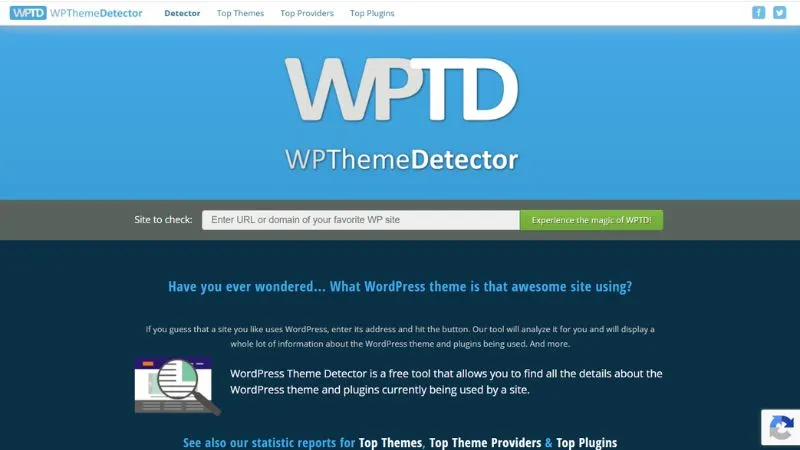
WPThemeDetector.com is the standout. It’s been running since 2012, which matters because it has accumulated detection data from millions of sites.
Here’s what sets it apart.
It scans the full theme hierarchy. When it hits a child theme, it doesn’t stop there. It automatically traces back to the parent theme and surfaces details for both. That’s the kind of depth you don’t get from tools that just read the page header.
It detects active plugins. This is the feature nobody talks about. WP Theme Detector doesn’t just show you the theme. It scans the site’s HTML output for plugin footprints and lists out every active plugin it can find. So instead of walking away knowing just the theme name, you walk away knowing the complete tech stack.
When it was tested against neilpatel.com, for example, it pulled up the full theme details and identified 10 active plugins including Yoast SEO, WP Rocket, Contact Form 7, Redirection, and Yoast Duplicate Post. That’s actionable data.
It cross-references its own database. If the theme is popular, the tool also tells you its rank in the global top themes list, the percentage of sites using it, and how that number has changed over time. You’re not just getting a name. You’re getting context.
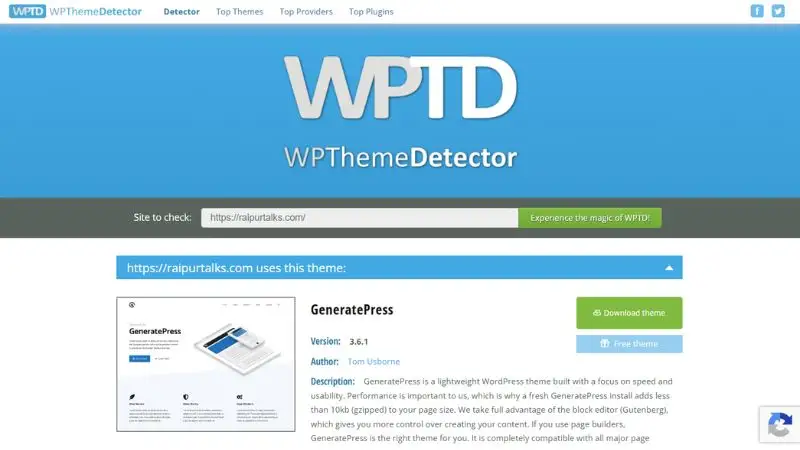
How to use it: Go to wpthemedetector.com. Paste the URL of any WordPress site into the search box. Hit the green button. Within seconds, you get the theme name, version, author, description, a screenshot, and the plugin list. No account needed. No limits.
One thing to remember: include https:// in the URL if the site has an SSL certificate. Without it, the tool defaults to the non-secure version and might not return results correctly.
What the Live Data Reveals in 2026
WP Theme Detector publishes real-time rankings based on its detection engine. Here’s what the current data shows.
The most-detected WordPress themes right now: Astra sits at the top, found on roughly 3.49% of all analyzed sites. Divi follows at 3.48%. Genesis, Hello Elementor, and Newspaper round out the top five. These aren’t guesses. These are live numbers from actual scans.
On the plugin side, Yoast SEO is the most detected plugin by a significant margin, appearing on over 6% of scanned sites. Contact Form 7, Elementor Page Builder, WPBakery, and Jetpack follow. WP Rocket shows up in the top 10 as well, which tracks with how seriously high-traffic sites treat page speed.
The top theme providers tell a similar story. StudioPress (the company behind Genesis) leads the pack. Elegant Themes, which makes Divi, is right behind them.
How to Use This Information Strategically
Finding a theme is step one. Using that information is step two.
Reverse-engineer competitor setups. If a competitor’s site is faster than yours, run their URL through WP Theme Detector. If they’re using WP Rocket and you’re not, that might be your answer.
Make smarter theme choices. Instead of randomly picking a theme from a top-10 list, look at what’s actually dominating your niche. Astra and GeneratePress are popular for a reason: they’re lightweight, fast, and compatible with every major page builder.
Spot technology trends. When you see that Rank Math is climbing the plugin charts and Yoast still dominates, that tells you something about where the market is moving. Stay ahead of it.
Common Mistakes to Avoid
Searching the page source on a site that uses Cloudflare or a CDN can return cached or proxied code that doesn’t reflect the live theme. Always run the URL through WP Theme Detector first before going manual.
Don’t assume the child theme name is the product you can buy. Always check if there’s a parent theme underneath. That’s usually the one available for purchase.
And don’t confuse “not detected” with “not WordPress.” Some sites hide their theme paths intentionally for security reasons. WP Theme Detector will still flag it as a WordPress installation even if it can’t pull the theme details.
Frequently Asked Questions
Is WP Theme Detector free to use?
Yes. The core detection tool is completely free with no account or sign-up required.
Can it detect themes on password-protected or private sites?
No. The tool scans the public HTML output of a site. If a page requires login credentials to access, it can’t scan it.
What if the tool returns “Unknown Theme”?
This usually means the theme has custom paths or the developer has deliberately removed standard theme identifiers. Try running a manual page source check as a backup.
Does it work on sites built with Elementor or Divi?
Yes. It will detect the base theme running underneath the page builder. In many cases, that’s Hello Elementor (for Elementor sites) or Divi (for Divi sites), which tells you exactly what setup they’re using.
Can it detect both parent and child themes?
Yes. That’s one of its core strengths. If a child theme is active, the tool automatically identifies and shows the parent theme details as well.
Will the site owner know I checked their theme?
No. The scan is completely passive. You’re reading public information from the site’s HTML output, the same way a browser does.
Conclusion
Go to wpthemedetector.com. Paste the URL. Read the results.
That’s it. In 60 seconds you’ll know the theme, the parent theme if one exists, the version, and a list of active plugins. No guesswork, no digging through source code, no wasted time.
If you want to go deeper, use the manual page source method to cross-check. But for most cases, WP Theme Detector gives you everything you need in one shot.
The best part? Every site you scan teaches you something new about what’s actually working in WordPress right now. That’s free education with zero effort.