Key Takeaways
- public_html is your website’s public storefront. It’s the only folder your visitors and Google can actually see.
- Everything outside it is private. Your host uses that space for backups, logs, and account-level files nobody browses to.
- A standard WordPress install lives entirely inside public_html: wp-admin, wp-content, wp-includes, plus wp-config.php and .htaccess.
- Files placed outside public_html don’t load in a browser. No error message, no drama. They just don’t exist as far as the web is concerned.
- Permissions matter more than most people realize. Folders need 755, files need 644. Get this wrong and you’ll see broken pages or security holes.
- Deleting public_html by accident takes your entire site down. There’s no soft version of this mistake.
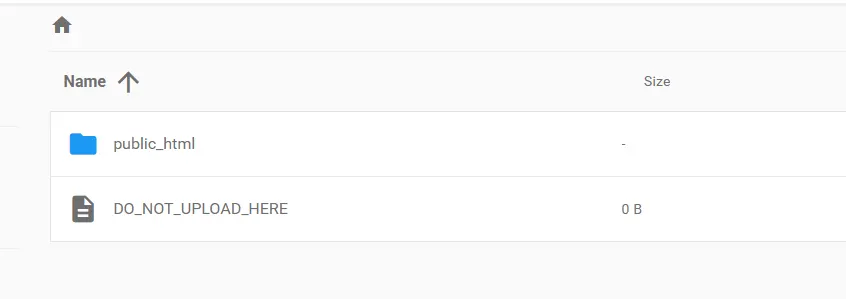
You open your cPanel file manager for the first time. Or maybe you connect through FTP. And there it is: a folder called public_html, sitting next to a bunch of other folders you’ve never heard of.
Most people panic right here. They’re scared to click anything in case they break their site.
You won’t be one of them after this. By the end of this guide, you’ll understand exactly what public_html does, what should live inside it, and what happens the moment something goes wrong.
What Is public_html, Really?
Think of public_html as the root directory of your web hosting account, specifically the part that’s public-facing.
When someone types your domain into a browser, the server doesn’t search your whole hosting account for a match. It goes straight to public_html and starts looking there. If a file isn’t in that folder (or a subfolder inside it), the browser never finds it.
That’s the entire job of this folder. It’s the bridge between your files and the internet.
The Showroom vs. the Warehouse
Here’s the analogy that makes this click instantly.
Picture a business with a storefront and a warehouse out back.
public_html is the showroom. Anything you put on those shelves, customers can walk in and see it. That’s your homepage, your blog posts, your images, your checkout page.
Everything outside public_html is the warehouse. It’s where you keep inventory, paperwork, and equipment. Customers never wander back there. In fact, they’re not even allowed to.
So when you’re deciding where a file goes, ask one question: does this need to be visible to a visitor? If yes, it belongs in the showroom (public_html). If no, it stays in the warehouse.
This one mental model solves almost every beginner mistake with file placement.
What Lives Inside public_html on a WordPress Site
If you’re running WordPress, your root directory WordPress setup follows a predictable pattern. Here’s the map:
public_html/
├── wp-admin/
├── wp-content/
│   ├── themes/
│   ├── plugins/
│   └── uploads/
├── wp-includes/
├── wp-config.php
├── .htaccess
└── index.php
wp-admin runs your dashboard. It’s the engine room behind the login screen.
wp-content is where your actual site identity lives: your theme, your plugins, and every image or file you’ve ever uploaded. This is the folder you’ll touch most often, and it’s the one worth backing up religiously.
wp-includes holds core WordPress functions. You should never need to edit anything in here manually.
wp-config.php stores your database connection details and security keys. This single file is arguably the most important one in the entire folder.
.htaccess controls your permalinks and a chunk of your site’s security rules on Apache servers.
What Happens If You Put Files Outside public_html
This is where WPBeginner-style glossary pages usually stop, but it’s actually the part that trips people up the most.
If you upload a file outside public_html, your browser simply can’t reach it. No 404 page, no crash. The internet just acts like the file was never created.
Sometimes this is intentional. Experienced developers store sensitive configuration files or database backups outside the web root on purpose, specifically so nobody can access them by guessing a URL. It’s a smart security move.
The opposite mistake is far more common and far more dangerous: leaving sensitive files inside public_html where anyone can find them. A stray backup .zip, an exposed .env file, an old phpinfo.php script. If it sits inside the public folder, assume someone will eventually stumble onto it.
I’ve seen this go wrong firsthand. A client once ran a manual site backup and left the resulting .zip file sitting inside public_html instead of moving it out. Three days later, someone had found the file just by guessing the URL and downloaded the entire database along with it. Nothing was hacked. No plugin was exploited. The file was simply sitting in the showroom where anyone could walk up and grab it. That one habit, moving backups out of public_html the moment you create them, would have stopped the whole thing.
How File Permissions Work Inside public_html
Permissions decide who can read, write, or execute a file. Get them wrong, and you’ll either lock yourself out or leave the door wide open.
The two numbers you actually need to remember:
- 755 for folders
- 644 for files
That’s it. That covers the vast majority of standard WordPress setups.
If permissions are too strict, you’ll see “forbidden” errors or a site that refuses to save changes. If they’re too loose, especially 777, you’re handing potential attackers an easy way to modify your files. Never set anything to 777 out of convenience. It’s a shortcut that costs people their entire site.
You can check and adjust permissions inside your cPanel file manager or through any FTP client like FileZilla. Right-click the file or folder and look for “permissions” or “CHMOD.” CHMOD is just the technical name for that permission number, nothing more complicated than that. Type in 755 for a folder or 644 for a file, save, and you’re done.
Common public_html Mistakes to Avoid
- Uploading WordPress to the wrong subfolder, which creates a broken URL structure nobody catches until launch day.
- Deleting .htaccess without a backup, which instantly breaks every permalink on the site.
- Setting folder permissions to 777 thinking it’ll “fix” an upload error. It won’t, and it opens a real security risk.
- Confusing wp-content with public_html and backing up the wrong folder, missing half your site.
Frequently Asked Questions
Is public_html the same as wp-content?
No. public_html is the entire web root. wp-content is just one folder inside it that holds your theme, plugins, and uploads.
Can I delete public_html?
Only if you want your entire website to disappear. Never delete this folder unless you’re intentionally rebuilding from scratch with a full backup in hand.
Where is public_html located on my server?
It sits at the top level of your hosting account, accessible through cPanel’s File Manager or any FTP client once you connect to your server. If you’re testing things on your own computer instead of a live server, the setup works a bit differently. Here’s how WordPress on localhost handles this.
What if I don’t see a public_html folder at all?
Some hosts use a different root name, like www or htdocs. Check your host’s documentation, since the underlying concept stays the same either way.
Is it safe to edit files directly inside public_html?
Only if you know exactly what you’re changing. Always back up wp-config.php and .htaccess before editing either one.
What’s the difference between public_html and htdocs?
They do the same job. public_html is the standard name on cPanel-based hosting, while htdocs is common on Apache installs like XAMPP. Same concept, different label.
Final Takeaway
public_html is simpler than it looks. It’s your site’s showroom, not a maze.
Before you make any manual change inside it, run through this checklist:
- Back up wp-config.php and .htaccess first
- Confirm folder permissions are 755 and file permissions are 644
- Double check you’re editing wp-content, not core WordPress files
- Never set anything to 777
Get comfortable with this one folder, and cPanel stops feeling intimidating for good.