Key Takeaways
- WordPress calls pinned posts “sticky posts.” The feature is 100% native. No plugin required.
- There are two fast ways to pin posts: Quick Edit from the Posts list, or the Block Editor sidebar inside your post.
- Pinning works on standard blog posts by default. Custom post types need a small extra step.
- You can pin multiple posts. The most recently pinned one shows up first.
- Unpinning is just as easy. One checkbox, one click.
Stop. Before you open a new tab and search “WordPress pin post plugin,” you need to know something important.
Most plugins that used to handle this are either closed, abandoned, or buried under Pinterest-related results that have nothing to do with your blog. Searching the WordPress plugin directory today for this task is a waste of your time.
The good news? You don’t need a plugin. WordPress has had this built in for years, and it works perfectly on both WordPress.com and self-hosted WordPress.org sites. The steps below apply to both.
What Does “Pin a Post” Actually Mean in WordPress?
When you pin posts in WordPress, you’re making them “sticky.” That post jumps to the top of your blog’s homepage and stays there, no matter how many new posts you publish.
It’s useful for announcements, lead magnets, popular evergreen content, or anything you want every visitor to see first.
WordPress calls this a “sticky post” in the backend. You won’t find a button that literally says “pin.” You’re looking for a checkbox labeled “Sticky” inside your post settings, which we’ll cover step by step below.
Why Most Guides on This Topic Are Outdated
The Plugin Problem Nobody Talks About
A lot of old blog posts still recommend plugins like “Sticky Posts Switcher” or similar admin shortcut tools. Most of those plugins are now closed or haven’t been updated in years. Using an unmaintained plugin is a real security risk. You’re adding unnecessary bloat for a feature WordPress already handles natively, for free.
Why Pinterest Results Dominate the Search
Search “pin post WordPress” and half the results will be about Pinterest boards, pinned tweets, or social sharing plugins. None of that is what you want. This guide is specifically about making a blog post stick to the top of your WordPress homepage.
The Right Way to Pin Posts in WordPress Today
Method 1: Using Quick Edit (Fastest Way)
This is the quickest way to pin posts without opening the post editor at all.
- Go to Posts > All Posts in your WordPress dashboard.
- Hover over the post you want to pin. You’ll see a row of options appear below the title.
- Click Quick Edit.
- A small inline panel will expand. Look for the checkbox that says “Make this post sticky.”
- Check that box.
- Click the blue Update button on the right side of the Quick Edit panel.
How to Verify It Worked
Go to your blog’s homepage in a new tab and refresh. The post should now appear above all other posts. Depending on your theme, it may also show a visual indicator like a “Featured” label or a colored background behind the title. That’s the entry-sticky CSS class your theme applies to sticky posts. If you don’t see a visual difference, the post is still pinned. It’ll just sit at the top looking like a regular post.
Method 2: Using the Block Editor (Gutenberg) Post Settings
If you’re already inside a post in the Block Editor, you can pin it directly from there.
- Open the post you want to pin in the Block Editor.
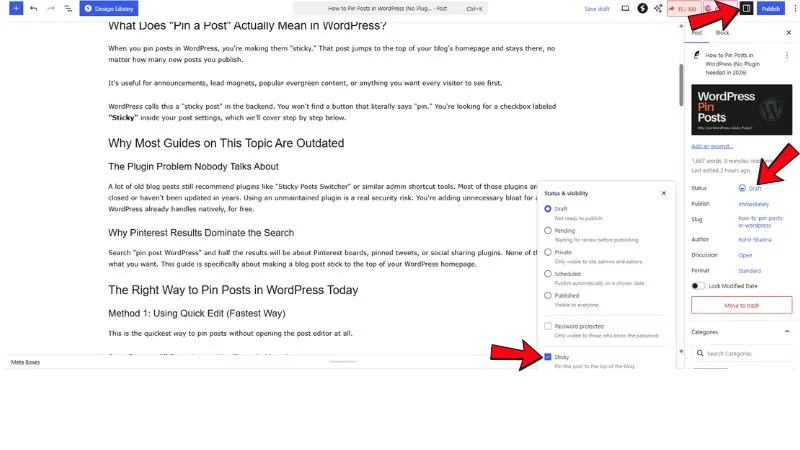
- Look at the right-hand sidebar. If you don’t see it, click the Settings icon in the top-right corner (it looks like a square with two uneven columns).
- Click the Post tab in the sidebar (not the Block tab).
- Find the Status field. Click the link next to it.
- Tick the checkbox marked “Sticky.”
- Click Save to apply the change.
How to Verify It Worked
Open your blog homepage in a new tab and refresh. Your post should sit above all other content. If it doesn’t appear at the top immediately, clear your caching plugin (LiteSpeed Cache, W3 Total Cache, or whichever you use) and refresh again. Caching is the most common reason a freshly pinned post doesn’t show at the top right away.
Important: Only public posts can be set as sticky. If your post is set to Private, the Sticky option won’t apply. Change visibility to Public first, then pin it.
A Note on Block Themes and Custom Post Types
If you’re running a block theme or using the Full Site Editor, the steps above still work exactly the same way. The sticky option lives at the post data level inside WordPress core, not inside the editor interface, so no theme can break it.
Custom post types are a different story. If your site uses a custom post type for case studies, portfolio items, or product news, the native sticky checkbox won’t appear. You or your developer would need to add sticky support when registering the post type, and then reference is_sticky() in the template to handle display logic. If you’re not a developer, a few lines in functions.php is the cleanest solution — not a bloated plugin from the directory.
How to Pin Multiple Posts in WordPress
You can pin more than one post. There’s no hard limit set by WordPress core.
To pin a second post, just repeat either method above on any other post. Both will appear at the top of your blog above regular posts.
Which post shows first? The most recently pinned post appears at the very top. If you need a specific post to show first, pin it last.
How many should you pin? Keep it to one or two. Pinning five posts defeats the purpose. Your homepage gets cluttered, and none of them get the attention you wanted.
How to Unpin a Post in WordPress
Unpinning works the same way as pinning. Go back to Quick Edit or the Block Editor sidebar, uncheck the Sticky option, and hit Update or Save.
The post returns to its normal position in your blog’s chronological order.
When Should You Actually Pin a Post?
Pin something when it’s doing real work for your site. A launch announcement. A “Start Here” post that orients new readers. Your highest-converting evergreen guide. A limited-time offer you can’t afford to have buried.
Site news and policy updates work here too, but only if they’re genuinely important. “We updated our privacy policy” does not need to be the first thing every visitor sees.
Common Mistakes to Avoid When Pinning Posts
Forgetting to Unpin Outdated Content
That “Black Friday Sale Ends Tonight” post from two years ago sitting at the top of your blog is not a good look. Set a calendar reminder to remove sticky status when it’s no longer relevant.
Installing a Plugin for This
You don’t need one. Some plugin directory listings promote tools claiming to “manage sticky posts” with extra features. Most are bloated, several are unmaintained, and the core feature they wrap already exists in your dashboard for free.
Trying to Pin a Private Post
WordPress won’t allow it. Sticky status only works on public posts. Change visibility to Public first, then apply sticky.
Pinning Too Many Posts at Once
One or two pinned posts work. Five pinned posts look like a broken homepage. Pick your single most important post and pin that one.
Expecting It to Work on Custom Post Types
Sticky status applies to the standard blog “Posts” type only. Portfolio items, testimonials, case studies — none of these support it by default. You’ll need register_post_type() with sticky support added, or use is_sticky() in your template file to handle it manually.
FAQs
Does pinning a post affect SEO?
No. Sticking a post to the top of your blog doesn’t change its crawl priority or ranking signals. Google indexes based on links and page content, not display order on your homepage.
Can I pin a post on a specific category page?
Not with the native WordPress sticky feature. The built-in option only works on your main blog index. Pinning to a category archive requires custom code or a lightweight plugin built specifically for that purpose.
Does the sticky post option work with all WordPress themes?
Most modern themes support it out of the box. Some newer block themes may not apply the entry-sticky CSS class visually, so the post will be pinned at the top without special styling. You can add custom CSS to your theme’s style sheet if you want a visual indicator.
Can I pin a post in WooCommerce or a custom post type?
Not with the default checkbox. WooCommerce products and custom post types need manual code to enable sticky support via register_post_type(). A developer can handle this quickly.
Is there a limit to how many posts I can pin?
WordPress doesn’t set a hard limit. Practically speaking, more than two pinned posts makes your homepage harder to navigate and dilutes the impact of pinning anything at all.
What happens to sticky posts in RSS feeds?
They appear in normal chronological order. Sticky post status only affects how posts display on your blog’s homepage or blog index. RSS readers and feed aggregators don’t recognize the sticky flag.
Does this work with block themes and Full Site Editing?
Yes. The sticky post checkbox lives at the post-data level inside WordPress core, so it works regardless of whether you’re using a classic theme, a block theme, or FSE.
Can I set sticky posts via WP-CLI?
Yes. Run wp post update {post_id} --sticky=true to pin a post from the command line. Use --sticky=false to unpin. Useful if you’re managing multiple sites or automating WordPress workflows.
Can I pin a private post?
No. WordPress only allows public posts to be marked as sticky. Private posts are not compatible with this feature.
Final Thoughts
Pin posts in WordPress the right way: native, fast, and plugin-free. Use Quick Edit for speed. Use the Block Editor sidebar when you’re already working inside the post.
Skip the plugin search. Everything you need is already sitting in your WordPress dashboard.
Go pin your best post right now. It takes about 10 seconds.